Text channels work well for real-time conversation. They fall apart when you need organized, topic-specific discussions that stay findable over time. Three simultaneous conversations in a text channel turn into chaos within minutes - threads help, but they're still pinned inside the stream.
Forum channels solve this. Every discussion gets its own titled post with a thread underneath, visible in a browsable grid or list. Questions stay paired with their answers. Showcase posts don't get buried. Feedback doesn't disappear in scroll.
This guide covers everything you need to know to set up and run Discord forum channels effectively.
Forum Channels vs. Text Channels
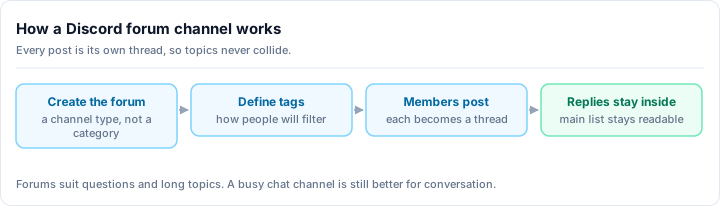
A Discord forum channel is a board of posts rather than a stream of messages. Every conversation in a forum starts its own post, which is a thread with a title, an author and optional tags, and those posts sit in a browsable list that members can sort by recent activity or filter by tag. A text channel, by contrast, is one chronological feed where every conversation shares the same space and older discussion scrolls away permanently. The practical consequence is findability: in a forum, a question asked three weeks ago is still a titled, taggable, searchable entry, while in a text channel it is buried under everything posted since. Use a forum channel wherever people ask questions, share work for feedback, or report problems that other members will need to look up again later.
The core difference is structure:
- Text channels are chronological streams. Good for chat, announcements, and live discussion.
- Forum channels are organized boards. Good for questions, showcases, ideas, reports, and anything where you want to find specific discussions later.
In a text channel, a question asked three hours ago requires scrolling to find. In a forum channel, it's a titled post on the board with a clear status.
Forums replaced the 'questions in text channels' problem
Before forum channels, servers used hacks like pinned messages, bots, or dedicated Q&A bots to organize help channels. Forum channels make this native - no workarounds needed.
What You Need Before You Start
Forum Channels are only available once your server has Community Server enabled, which is the first thing most people hit and the reason the option is missing from their channel menu. Enabling Community requires a verification level of at least Low, explicit content filtering on, and a rules channel and a moderator-updates channel nominated in Server Settings. It also unlocks Onboarding, Stage Channel and the Announcement channel type at the same time, and makes the server eligible for Server Boost perks that raise upload limits. You need Manage Channels to create the forum itself once Community is on.
How to Create a Forum Channel
Open channel creation
Click the + button next to a category name in your channel list (or right-click the category and select Add Channel). You need Manage Channels permission.
Select Forum as the channel type
In the channel type picker, select Forum. This option was added in 2022 and is available on all server types.
Name your forum channel
Give it a clear, descriptive name. Good examples: #questions, #project-showcase, #suggestions, #help, #feedback. The name should tell members exactly what to post here.
Configure the forum settings
After creation, open the channel settings. Key settings to configure:
- Topic/Guidelines - Shown to members before they create a post. Use this to explain what belongs here and what format to follow.
- Default Reaction Emoji - The emoji members see for quick reactions on posts (heart, thumbs up, checkmark).
- Default Post Layout - Grid view (card layout) or List view. Grid works well for visual content; List works better for Q&A.
- Require Tags - Force posters to select a tag before publishing. Strongly recommended for organized forums.
- Slow Mode - Sets a minimum time between posts from the same user.
Set up tags
Tags are labels members can apply to their posts. Go to channel settings → Tags and create your tags. Examples for a help channel: Solved, Open, Bug, Question, Resource. Examples for a showcase channel: Work in Progress, Completed, Feedback Welcome.
Configuring Forum Tags
Tags are the most important organizational tool in forum channels. When set up well, they let moderators and members filter the board to find exactly what they need.
Best practices for tags:
- Create 3-8 tags - Fewer is better. Too many tags confuse members and dilute the filtering usefulness.
- Enable Required Tags for structured forums - This ensures every post is categorized and prevents the chaos of untagged threads.
- Use a status tag system for Q&A - Tags like
OpenandSolvedlet members filter to unanswered questions. Moderators can update the tag when a question is answered. - Emoji + text for visual clarity - Tags support emoji.
Solvedwith a green checkmark emoji makes status instantly scannable.
Use 'Solved' as a default reaction for Q&A forums
Set the default post reaction emoji to a checkmark. Members can react with it to signal a post answered their question even without writing a reply. Combine this with a 'Solved' tag for a clean Q&A workflow.
When to Use Forum Channels
Forums aren't right for every use case. Here's a clear breakdown:
Use forum channels for:
- Help and Q&A - Every question gets a thread. Answered questions can be tagged Solved and filtered out. Future members can search for similar questions.
- Project showcases - Members post their work with a title and description. Feedback replies stay organized under each post.
- Server suggestions - Each idea is its own post. Members vote (via reactions) and discuss. Staff can tag suggestions as Under Review, Planned, or Declined.
- Bug reports - Structured reports with tags for severity and status.
- Community resources - Guides, tutorials, and references with titled posts that stay discoverable.
- Introductions (alternative to text channels) - Each member gets their own intro post; replies don't get lost in a stream.
Stick to text channels for:
- General chat and casual conversation
- Announcements (paired with Announcement channel type for cross-server following)
- Live event discussion (gaming sessions, watch parties)
- Bot command spam channels
Thread Management Best Practices
Set post guidelines
Use the forum channel's Topic/Guidelines field. Members see this before creating a post. Write it as a short template: what to include in the title, what information to provide in the body, which tags to use. Good guidelines reduce low-effort posts and save moderation time.
Close resolved threads
In Q&A forums, encourage (or require) closing posts once questions are answered. Moderators can update the tag to Solved and lock the thread. This keeps the board clean and makes it easy for new members to see which questions still need answers.
Use slow mode for suggestion forums
Slow mode prevents a single member from flooding the forum with posts. For a suggestions channel, 10-30 minutes between posts is reasonable. This also encourages members to search for existing suggestions before creating a duplicate.
Pin the best posts
Right-click any forum post and select Pin Post to anchor it to the top of the forum. Use this sparingly - for your best resources, rules, or the most asked questions. Pinned posts appear at the top of the board regardless of activity.
Lock threads for completed content
For resource or reference forums, lock posts after they're published to prevent replies from aging the content. Members can still read everything; they just can't add new replies. This keeps your resources board clean rather than evolving into discussion threads.
How Forums Interact With Moderation
Forum posts are threads, so everything that governs thread moderation governs them. AutoMod rules set on the forum channel apply inside every post, keyword and spam filtering included, and a member who cannot send messages in the forum cannot open a post in it. Manage Messages lets a moderator delete individual replies; Manage Threads lets them rename, lock, pin or archive a whole post, which is how a resolved question gets closed without deleting the answer someone will need later. Each of those actions lands in the Audit Log with the moderator's name against it. Forums add one control that text channels do not have: you can require every new post to carry at least one Tag, which stops the board filling with untagged posts that nobody can filter for afterwards.
Permissions for Forum Channels
Forum channels use the same permission system as text channels, with one addition:
- Send Messages in Threads - Controls whether a member can reply to forum posts
- Create Public Threads - Controls whether a member can create new forum posts
- Manage Threads - Allows locking, deleting, and archiving posts
For a read-only showcase where only moderators post:
- Set @everyone: Create Public Threads → Deny
For a community showcase where everyone can post but only moderators can tag/close:
- Keep default Create Public Threads for @everyone
- Restrict Manage Threads to moderators
Common Mistakes
Creating a forum channel for everything. Forums work best for organized, topic-specific content. If you turn your general chat into a forum, conversation dies - people don't want to title every message. Keep forums for structured content only.
Not setting up tags. Tags are the feature that makes forums genuinely useful for filtering. A tagless forum is just a slightly worse text channel with extra steps. Set up tags and enable Required Tags before members start posting.
Ignoring the post guidelines. Members don't read the channel description in the sidebar. They do see the guidelines popup when they create a post. This is your best opportunity to set expectations - use it.
Not closing resolved threads. If your Q&A forum accumulates solved questions mixed with open ones, it becomes overwhelming. Assign moderators to tag answers as Solved or build a culture where the original poster marks their own thread resolved.
Next Steps
Forum channels work best as part of a broader, well-organized server structure:
- Discord server setup guide - full channel architecture and permission setup
- How to grow your Discord server - attract members who will actually use your forums
- Discord server moderation guide - keeping forum content quality high as your community grows
A well-configured forum channel can dramatically reduce repeated questions, surface your community's best contributions, and give members a reason to stay engaged. It's one of the highest-value structural improvements you can make to a growing Discord server.