Regular voice channels are great for group hangouts. Everyone joins, everyone talks, it's casual and free-flowing. But when you're hosting a presentation, an AMA, a podcast recording, or a community town hall, that format breaks down fast - you need structure, and structure is exactly what Stage channels provide.
Stages give you a broadcast-style voice channel with clear speaker and audience roles. The right people talk; everyone else listens and raises their hand to join the conversation. This guide covers everything: creating a Stage, managing speakers, using it with Discord Events, and running a Stage that people actually want to attend.
What Stage Channels Are (and Aren't)
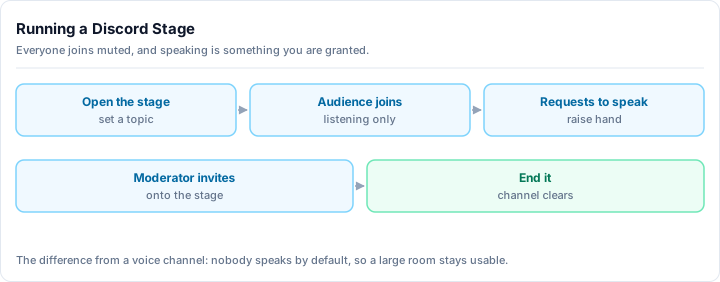
A Stage channel has three participant types: Stage Moderators, who control the Stage by setting the topic, inviting speakers, removing speakers, and ending the session; Speakers, who can talk and include Stage Moderators plus any audience members invited up; and Audience members, who are muted by default but can raise their hands to request speaking time and see the speaker list, topic, and chat. Stages differ fundamentally from regular voice channels, which work well for casual group hangouts where everyone talks freely. Stages excel at structured events like presentations, AMAs, podcasts, and town halls where the speaker-audience separation is intentional and useful. To use Stage channels, your server must have the Community feature enabled, which you can set up for free in Server Settings. This structured format keeps conversations focused and prevents the chaos that often erupts when everyone tries to speak simultaneously in traditional voice channels.
- Stage Moderators - Members with the Stage Moderator role or Manage Channels permission. They control the Stage: set the topic, invite speakers, remove speakers, and end the Stage.
- Speakers - Members who can talk. Stage Moderators are automatically speakers. Audience members can be invited up.
- Audience - Everyone else. Muted by default. Can raise their hand to request speaking time. Can see the speaker list, topic, and chat (if enabled).
Stages are not for casual group voice chat - that's what regular voice channels are for. Stages excel at structured events where the speaker/audience separation is intentional and useful.
Stage channels require Community to be enabled
You need to have the Community feature enabled on your server to create Stage channels. Go to Server Settings → Community and follow the setup flow. Community is free and unlocks several other useful features beyond Stages.
How to Create a Stage Channel
Open channel creation
Click the + next to a category name, or right-click the category and select Add Channel. You need Manage Channels permission.
Select Stage as the channel type
In the channel type selector, choose Stage Channel. Stages appear in the voice section of your channel list with a distinctive stage icon.
Name and configure the channel
Name it based on its purpose: Main Stage, Town Hall, Podcast, AMA, or something specific to your community. Set the bitrate - higher bitrate gives better audio quality. For music or high-quality presentation, use 96kbps or higher if your server has boosts; 64kbps is the default.
Configure permissions
Who should be able to Stage Moderate? Set the Move Members permission on the roles that should have Stage Moderator access. Anyone with Move Members or Manage Channels in the Stage channel becomes a Stage Moderator automatically.
Consider creating a dedicated Stage Moderator role and granting it on the Stage channel specifically - this gives you granular control without granting server-wide permissions.
Starting and Running a Stage
Starting a live Stage
Click the Stage channel name to join it. A dialog appears asking you to set the Stage topic - this shows to all server members and helps people decide whether to join. Write a clear, specific topic: "Q&A with the dev team about the new update" beats "Stage Channel."
Once started, the Stage appears prominently at the top of the server for all members. They can see the topic, who's speaking, and join with a click.
Managing speakers
As a Stage Moderator, you control the speaker lineup:
- Invite a speaker - Click a member in the audience and select "Invite to Speak." They'll receive a notification and can accept to move up.
- Remove a speaker - Click a speaker and select "Move to Audience" to return them to listener status.
- Raise Hand requests - When audience members raise their hands, you'll see them flagged in the audience list. Invite them up or dismiss their request.
Mute speakers, don't remove them
If a speaker's audio has issues or they're talking over someone, use the mute option rather than removing them from the stage. Muting is temporary and less disruptive to the conversation flow.
Audience participation
Audience members can:
- Raise their hand to request speaking time
- React with emoji (if enabled) for live feedback without interrupting
- Use Stage chat if you have a text channel open alongside the Stage
- Follow the Stage to get notified when similar events happen
Stage chats work best when a moderator or co-host monitors them and surfaces audience questions to the speakers - this creates a natural Q&A flow without the chaos of everyone trying to speak at once.
Using Discord Events with Stages
Scheduling your Stage as a Discord Event dramatically increases attendance. Scheduled events appear in the Events tab, can be shared via link, and trigger notifications to interested members.
Create an event
Click the Events tab at the top of your server sidebar, then click Create Event. Alternatively, right-click the Stage channel → Create Event.
Select your Stage channel as the location
Choose "In a Stage Channel" and select the channel you created.
Fill in event details
Write a compelling title and description. Include:
- What the event is (AMA, podcast, announcement, etc.)
- Who's speaking (names and any relevant credentials)
- What members should expect
- How to participate (raise hand for questions, use chat, etc.)
Set the scheduled date and time in your server's primary timezone.
Publish and promote
Once published, members can RSVP with "Interested." They'll receive a notification when the event starts. Share the event link on social media, in other channels, or with partner communities to maximize attendance.
Best Use Cases for Stages
AMAs (Ask Me Anything)
The Raise Hand feature is perfect for AMAs. The host stays on stage, audience members raise hands to ask questions, and the host invites them up one at a time. Structured, controlled, and much less chaotic than a regular voice channel AMA.
Podcast recordings
Record a podcast with your community listening live. Speakers are the hosts and guests; the audience listens and can submit questions via text chat. Tools like Craig Bot can record multi-track audio directly from Discord.
Town halls and announcements
Major announcements benefit from the structured Stage format - leadership speaks clearly to the whole community, questions come through the raise-hand system, and the audience doesn't talk over the presentation.
Presentations and workshops
Share knowledge with your community in a structured format. The speaker presents; the audience listens and raises hands for questions at the end. Works well for technical topics where interruptions derail the flow.
Community showcases
Members present their projects, art, or work with everyone listening. Each presenter gets a focused slot without cross-talk. The Raise Hand system handles applause and questions between presentations.
Tips for a Better Stage
Test your audio before going live. Join the Stage with a co-moderator and test volume levels, echo, and clarity before your audience arrives. Background noise and poor audio are the fastest ways to lose listeners.
Have a co-host. Managing speakers, watching the text chat, and running the conversation at the same time is overwhelming alone. A co-host who handles audience questions and speaker logistics while you focus on the conversation makes the event dramatically smoother.
Set expectations in the event description. Tell attendees whether questions will be taken live, whether chat will be monitored, and what the format looks like. Surprises frustrate listeners.
Use the Stage topic effectively. The topic is what members see before they join. Update it if the subject changes mid-Stage. A specific, interesting topic drives higher audience numbers than a vague one.
Keep Stages under two hours. Listener attention drops sharply after 90 minutes. If your content is longer, break it into multiple sessions or take a clear break mid-Stage.
Post a recap after your Stage
Record the audio or take notes during the Stage, then post a summary in a text channel afterward. Members who couldn't attend appreciate the recap, and it extends the value of the event beyond its runtime.
Common Mistakes
Not setting a topic. The Stage topic is highly visible to all server members. A blank or vague topic ("Talk" or "AMA") gets fewer attendees than a specific, compelling one ("Live Q&A: How we built our game in 6 months - ask us anything").
Too many speakers at once. Stages with five or more simultaneous speakers become difficult to follow. Structure your events so one or two people speak at a time, with others in the audience until called upon.
Ignoring the text chat. Audience members who want to participate but don't get called on stage will use the text chat. Ignoring it makes those members feel excluded. Assign someone to monitor chat and surface good questions.
Not scheduling events in advance. An unscheduled, spontaneous Stage will have fewer attendees than one announced 24-48 hours ahead. Events give members time to plan and signal interest - use them consistently.
Next Steps
Stage channels work best as part of an active, well-run community:
- 25 Discord event ideas - inspiration for events worth hosting on your Stage
- How to grow your Discord server - building the audience that makes Stages worth running
- Discord server setup guide - full server structure and permissions
A regularly scheduled Stage event - even monthly - gives your community a reason to look forward to gathering. It's one of the most effective ways to create shared experiences that turn casual members into long-term community members.