Discord server templates are starting points, not finish lines. The difference between a successful server and a failed clone is what you do after creating from a template: how you customize it, document it, and run it.
A template is a starting point, not a finished server. The ones that work are always adapted to the community that lives in them.
What Makes a Good Template
Before using or creating one, understand what works: a good template combines clear channel structure, defined role hierarchy, and thoughtful welcome setup. Your channels should be grouped by purpose into 8-15 categories with consistent lowercase naming, while roles should stay minimal - three to five core tiers like Admins, Moderators, and Members rather than dozens. Include a pinned welcome message explaining your server's purpose, an introduction channel for new members, and a rules channel with clear expectations. Documentation matters most: the best templates include a "Getting Started" channel with instructions, a staff guide explaining the structure, and examples of how to use each channel. A template applied unchanged tends to read as generic to the people who join it, so treat templates as starting points you'll adapt to your community's actual needs, not finished products.
Clear Channel Structure
- Categories: Group channels by purpose (Info, General, Gaming, Voice, Staff)
- Naming: Lowercase + dashes (#gaming-help not #Gaming-Help-Channel)
- Count: 8-15 channels for starter servers; too few feels empty, too many overwhelms new members
Role Hierarchy
- Tiers: @Admins, @Moderators, @Members (3-5 core roles, not 50)
- Documented: A staff guide explaining what each role does
Welcome Setup
- Pinned message: Server purpose + first steps
- Introduction channel: Where new members say hi
- Rules channel: Clear expectations
Documentation
The best templates include:
- A "Getting Started" channel with instructions
- A staff guide explaining the structure
- Examples of how to use each channel
Best Templates by Category
Gaming Community Template
What it includes:
- Gaming channels by genre (#fps, #rpg, #casual)
- LFG (Looking For Group) channels
- Voice channels (General, Gaming, AFK)
- Streaming/clips showcase
- Leaderboards or rank roles
Customize for your game: Add game-specific channels, create custom roles for ranks, set up a bot for economy if it's relevant.
Best for: Casual gaming communities, not esports teams (which need tournament infrastructure).
Study Buddy Template
What it includes:
- Study rooms (Math, Science, History, etc.)
- Homework help channel
- Study schedule board
- Focus/pomodoro rooms (25min focus sessions)
- Voice channels for study hangouts
- Motivation and wins channel
Customize: Add specific subjects your students care about, set study hours, create roles for student level (freshman, junior, etc.).
Community Hub Template
What it includes:
- Introductions channel
- Off-topic/casual chat
- Announcements
- Suggestion box
- Event/meetup planning
- Showcase (members share work)
Customize: Focus on your community's interests (specific hobbies, cities, interests), create events relevant to your group.
Business/Team Template
What it includes:
- #announcements (company updates)
- #general (team chat)
- Department channels (#marketing, #engineering, etc.)
- #random (casual chat)
- #help or #questions
- #resources or #docs
- Voice channels for meetings
Customize: Replace department names with your actual departments, add links to tools (GitHub, Figma, Jira), set team-specific rules.
Creator/Content Template
What it includes:
- Community chat
- Creator showcase (portfolio or latest work)
- Feedback/critique channel (getting help)
- Collaboration opportunities
- Exclusive member perks
- Behind-the-scenes
Customize: Add your platform (artists add art gallery, musicians add music sharing, writers add writing feedback), link to your portfolio/social media.
How to Use a Template Effectively
Step 1: Create from Template
Click the template link or use discord.new, create your server.
Step 2: Immediate Customization (First Hour)
- Update server icon and banner
- Write server description (mission statement in #about)
- Update #rules with your actual rules
- Rename channels that don't fit your community
- Delete unused channels
- Pin welcome message in #general
Step 3: Staff Setup (Before Launch)
- Create staff roles, assign staff
- Set up your moderation bot
- Configure channel permissions
- Create #staff-chat (hidden from members)
- Document the server structure in a staff guide
Step 4: Launch & Gather Initial Members
- Invite your friends/core community
- Announce launch (social media, existing communities)
- Gather feedback on structure
- Iterate-don't be afraid to rename or reorganize channels
Step 5: Iterate Over Time
You'll discover what channels get used and which are dead. After 1-2 weeks:
- Delete unused channels
- Rename underutilized channels to attract use
- Add channels your members ask for
Creating Your Own Template
If you build a great server and want to share the template:
Step 1: Perfect Your Structure
Before creating a template, ensure:
- Channel naming is consistent
- Roles are clearly defined
- Category grouping makes sense
- Welcome setup is complete
Step 2: Create the Template
Right-click your server → Server Settings → Templates → Create Template. Name it descriptively.
Step 3: Document Everything
Add a #template-guide channel explaining:
- What each channel is for
- How to customize roles
- Recommended bots to add
- Where to find community
Step 4: Share
Get the template link (copy from Templates → [Your Template] → Copy Link). Share on:
- Reddit (r/discordservers, subreddit for your niche)
- Discord server template sharing sites
- Your website or social media
- Your community
The Bottom Line
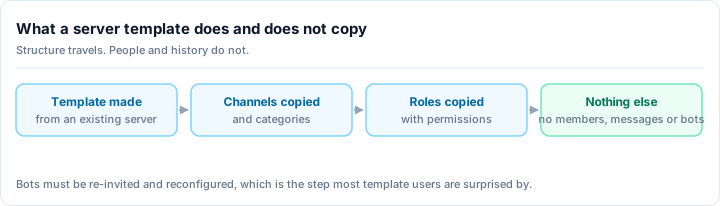
Templates save time, but they're just structure. The magic happens in your execution: how you moderate, what events you run, who you recruit, how you build culture.
A mediocre template + great leadership beats a perfect template + absent leadership every single time.
Use templates as blueprints, not dogma. Customize heavily, document your decisions, and adapt as your community grows.
Ready to build a thriving community? Add your server to Rally to reach members searching for well-structured communities like yours, then create your own template to share with others.