Whether you're building a community for your friend group, a fan community, or a professional network, setting up a Discord server the right way from the start saves you hours of restructuring later.
This guide walks you through every step, from creating the server to configuring advanced features.
Step 1: Create Your Server
To create your Discord server, open Discord and click the + button in the server sidebar, then choose Create My Own. You'll select your server type based on your needs: For me and my friends offers a casual setup with no verification requirements, while For a club or community provides a more structured environment recommended for public servers. Next, upload a server icon and give your server a name - keep it short and memorable at two to four words, make it searchable by including your topic if it's public, and avoid excessive special characters that make discovery difficult. Once you've configured these details, click Create to launch your server. Setting up your server correctly from the start saves you significant time restructuring later, whether you're building a community for your friend group, a fan community, or a professional network.
Naming tips:
- Keep it short and memorable (2-4 words)
- Make it searchable - include your topic if it's a public server
- Avoid excessive special characters that make your server hard to find
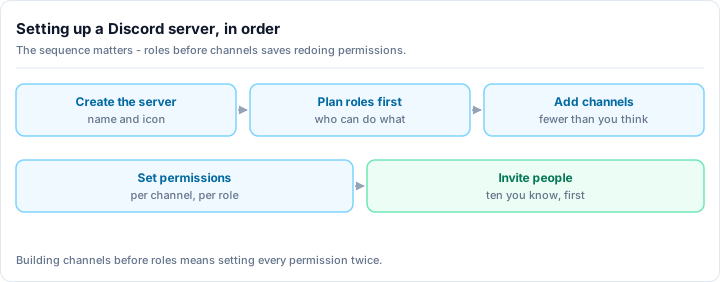
Step 2: Channel Structure
The default channels Discord creates are just a starting point. Here's a recommended structure for a community server:
Information Category
- #rules - Server rules and guidelines (read-only for members)
- #announcements - Important updates (read-only for members)
- #roles - Self-assignable role selection
- #faq - Frequently asked questions
Community Category
- #general - Main discussion channel
- #introductions - Where new members introduce themselves
- #off-topic - Casual conversation outside your server's main focus
- #media - Photos, videos, and links sharing
Topic-Specific Category
Create 3-5 channels based on your server's focus. For a gaming server:
- #game-discussion
- #looking-for-group
- #clips-and-highlights
Voice Category
- General Voice - Open voice channel for anyone
- Gaming - For playing together
- Music - For listening parties or DJ sessions
- AFK - Set as the AFK channel in server settings
Bot/Utility Category
- #bot-commands - Keep bot interactions out of main channels
- #suggestions - Member feedback and ideas
Important: Start with fewer channels than you think you need. You can always add more later, but empty channels make your server look dead.
Step 3: Roles and Permissions
Understanding Discord's Permission System
Permissions in Discord flow from top to bottom:
- Server-level permissions - Set on the role itself
- Category permissions - Override server-level for all channels in the category
- Channel permissions - Override category-level for a specific channel
A checkmark (✓) grants permission, an X denies it, and a slash (/) inherits from the level above.
Essential Roles to Create
@everyone (default role)
- Deny: Manage Messages, Manage Channels, Manage Roles
- Deny: Mention @everyone/@here
- Allow: Read messages, Send messages, Connect to voice, Use application commands
- Consider: Deny Send Messages in info channels (rules, announcements)
Member - For verified members (if using a verification system)
- All of @everyone permissions plus:
- Allow: Attach files, Embed links, Add reactions
- Allow: Use external emojis, Use external stickers
Moderator
- All Member permissions plus:
- Allow: Manage Messages (delete messages, pin)
- Allow: Mute Members, Deafen Members, Move Members (voice)
- Allow: Kick Members, Ban Members
- Allow: View Audit Log
Administrator
- Full Administrator permission (use sparingly)
- Only for server owner and most trusted co-admins
Color-Coding Roles
Color your roles to make the member list visually organized:
- Admins: Red
- Moderators: Orange or yellow
- Trusted members: Green or blue
- New members: Default (no color)
Role position matters - higher roles appear first in the member list and can manage roles below them.
Step 4: Server Settings
Essential Settings to Configure
Overview tab:
- Set your server's AFK channel and timeout (5-15 minutes is standard)
- Upload a server banner if you have boosts
- Write a clear server description
Moderation tab:
- Set verification level to Medium (must have verified email + be registered for 5 minutes)
- For larger servers, use High (must also be a server member for 10 minutes)
- Enable the explicit media content filter
Community tab (recommended for public servers):
- Enable Community to unlock features like:
- Server Discovery (at 1,000+ members)
- Welcome Screen
- Server Insights
- Announcement channels that other servers can follow
- Set up the Welcome Screen with a greeting and channel guide
Safety Setup:
- Enable DM spam protection
- Set up AutoMod keyword filters
- Configure notification defaults to "Only @mentions" to prevent notification overload
Step 5: Add Essential Bots
A few key bots make server management dramatically easier.
Moderation Bot
A moderation bot should be your first addition. Look for one that provides:
- Warning and punishment tracking
- Automod (anti-spam, word filters, invite link blocking)
- Logging (joins, leaves, message deletions, role changes)
- Timed mutes and bans
Leveling/Engagement Bot
A leveling bot encourages participation:
- Members earn XP for chatting
- Level up for special roles and permissions
- Leaderboards create friendly competition
Welcome Bot
Automate your first impression:
- Send a customized welcome message in your welcome channel
- Auto-assign a default role
- Track invite usage so you know where members come from
Setup Tips for Bots
- Create a dedicated bot role positioned above @everyone but below moderators
- Grant only the permissions each bot needs (principle of least privilege)
- Configure bot command channels to keep main chat clean
- Test each bot's commands before announcing it to your community
Step 6: The Welcome Experience
Your server's first impression determines whether new members stay or leave.
Welcome Screen
If you've enabled Community features, set up the Welcome Screen:
- Go to Server Settings → Community → Welcome Screen
- Add 3-5 recommended channels with descriptions
- Write a brief, friendly welcome message
- Include your main discussion channel, rules, and role selection
Onboarding Flow
Discord's built-in Onboarding feature lets you:
- Ask new members questions about their interests
- Automatically assign roles based on answers
- Show only relevant channels
- Provide a guided tour of your server
This reduces overwhelm for new members and increases engagement from day one.
Step 7: Security Hardening
Prevent Common Attacks
- Raid protection: Enable verification level Medium or higher
- Link spam: Use AutoMod to restrict links in general chat
- DM spam: Enable DM spam filter in Safety Setup
- Impersonation: Make it clear in rules that staff will never DM first asking for personal information
- Phishing links: Block common phishing domains via AutoMod
Backup Your Server
Use a server backup bot to regularly save:
- Channel structure and permissions
- Role hierarchy and settings
- Server settings and configuration
If something goes wrong (accidental deletion, compromised admin account), you can restore quickly.
Step 8: Going Public
Once your server is set up and has a small group of active members (even 10-20 is enough), it's time to grow:
- List on discovery platforms - Get your server on platforms like Rally where people actively search for communities to join
- Create a permanent invite link - Settings → Invites → Create one with no expiration
- Share on social media - Post in relevant communities where your target audience hangs out
- Enable Discord Discovery - Once you hit 1,000 members
Pre-Launch Checklist
Before going public, verify:
- All channels have clear descriptions and topic tags
- Rules are written and pinned
- At least 2 moderators are active
- Essential bots are configured and tested
- Welcome screen or onboarding is set up
- Permissions are correct (test with a secondary account)
- AutoMod is configured for spam protection
- The server looks active (seed some conversations)
Common Setup Mistakes
- Too many channels at launch - Start with 8-12 and grow organically
- Complex role hierarchies - Keep it simple. @everyone → Member → Moderator → Admin is enough to start
- No verification - Even friend groups benefit from basic verification
- Bot overload - 2-3 well-configured bots beat 10 poorly configured ones
- No rules - Even the most casual server needs basic conduct guidelines
- Ignoring mobile users - Test your server on mobile. Long channel names get truncated, complex emoji names don't render well
- Admin permission sharing - Never give full Admin to someone you don't completely trust
Next Steps
Once your server is running smoothly with a growing member base, focus on:
- Events - Regular events keep members coming back
- Content - Unique content or features that differentiate your server
- Culture - Actively shape the community culture you want
- Feedback - Regularly ask members what they want improved
A well-set-up server is the foundation, but it's just the beginning. The real work - and the real reward - is building a community that people genuinely enjoy being part of.