Setting up a Discord server correctly from the start saves you from the painful work of restructuring a live community. This checklist is organized in the exact order you should work through it - complete each section before moving to the next.
Bookmark this page. Use it as a working reference while you build, not just once.
Section 1: Core Server Settings
Before you create a single channel, configure your server's identity and safety baseline by working directly in Server Settings first. Start by setting your server name to something short and descriptive under 30 characters, uploading a 512x512 PNG icon, and writing a one or two sentence description of who the server is for. Then establish your safety foundation: set verification level to at least Low for verified email addresses, enable explicit content filtering to scan messages from members without roles at minimum, and enable 2FA requirement for moderation actions. Configure your server region to match your primary audience, set a system channel for welcome messages, and disable default join announcements if you plan to use a bot instead. These global settings affect everything else you build, so completing them before adding channels or roles prevents painful restructuring of a live community later.
Work in Server Settings first
Go to Server Settings before adding channels or roles. These global settings affect everything else you build.
Identity
- Set your server name - keep it short, descriptive, and searchable (under 30 characters)
- Upload a server icon - 512x512 PNG minimum, clear at small sizes
- Write a server description - one or two sentences on who the server is for and what members get out of it
- Set a server banner if you have one (requires server boost Level 1)
Verification and Safety
- Set verification level to at least Low (verified email) before going public
- Set explicit content filter to Scan messages from members without roles at minimum; Scan all messages for public servers
- Enable 2FA requirement for moderation actions (Server Settings → Safety Setup)
- Review and set your DM spam filter (Server Settings → Safety Setup → DM Spam Filter)
Region and Discovery
- Confirm your server region matches your primary audience
- Set a system channel for welcome messages and boost notifications (or disable it if you have a custom welcome bot)
- Disable the default system message for join announcements if you plan to use a bot for this
Verification level sweet spot
'Low' (verified email) filters ~95% of spam bots while adding zero friction for real members. 'Medium' (registered for 5+ minutes) is almost as permissive but blocks fast-created raid accounts. Only use 'High' or 'Highest' if you're actively dealing with raids.
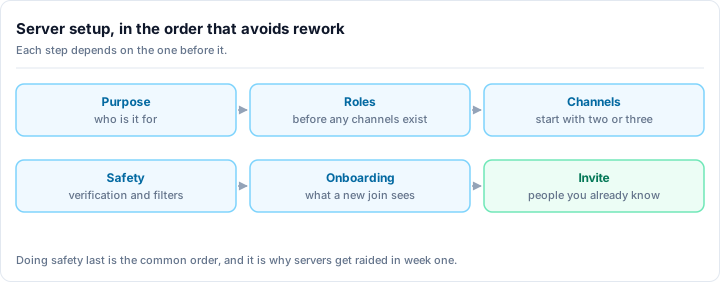
Section 2: Channel Structure
Build your channel skeleton before you invite anyone. It is much harder to reorganize a live server.
Information Channels (locked, staff-post-only)
-
#rules- server rules, clear and numbered; use Discord's Rules Screening if enabling Community -
#announcements- server news and updates; slowmode set to prevent spam if you accidentally grant send permissions -
#welcomeor#about- server purpose, getting started guide, links to important channels
Community Channels (members can post)
-
#general- main text chat -
#introductions- new members say hi; pin a prompt ("Tell us your name, where you're from, and why you joined") -
#off-topic- casual chat that isn't related to your server's core subject - Topic-specific channels - only add these for topics you already have enough members to fill
Bot and Utility Channels
-
#bot-commands- a dedicated channel for bot commands so they don't flood #general -
#mod-log- private, staff-only; your bot's moderation log goes here -
#member-log- private, staff-only; join/leave tracking
Voice Channels
- General voice - your main voice hangout
- At least one AFK channel - set an AFK timeout so idle members auto-move here
- Category-specific voice if relevant (e.g., "Gaming Room 1", "Gaming Room 2")
Name your channels consistently
Use lowercase with dashes throughout: #game-discussion, not #GameDiscussion or #Game Discussion. Category names are the one exception - title case looks clean there.
Channel Organization
- Group channels into categories (Info, Community, Bots, Voice, Staff)
- Drag channels into the right order within each category
- Set channel topics with a one-line description for every non-obvious channel
- Lock all information channels so only staff can post
Section 3: Role Hierarchy
Roles control what members can see and do. Get this hierarchy right before you assign a single role to a real person.
Order roles from top to bottom
Discord role hierarchy determines who can manage whom. Roles higher in the list can manage roles below them. Admin roles must be above Moderator roles, which must be above Member roles.
@everyone Baseline
- Remove
Send Messagesfrom @everyone - Remove
Add Reactionsfrom @everyone - Remove
Attach Filesfrom @everyone - Remove
Embed Linksfrom @everyone - Keep
Read Message HistoryandView Channelsenabled (so people can see the server before getting a role)
Member Role
- Create a
Memberrole (or use your community's preferred name) - Grant
Send Messages,Add Reactions,Attach Files,Embed Links,Use Application Commands - Do NOT grant
Administrator,Manage Messages, or any moderation permissions - Set color if you want members to have a colored name
Moderator Role
- Create a
Moderatorrole above Member in the hierarchy - Grant
Kick Members,Ban Members,Manage Messages,Mute Members,Timeout Members - Grant
View Audit Log - Do NOT grant
Administrator- it's a nuclear permission that bypasses all channel restrictions - Set a distinct color from Member
Admin Role
- Create an
Adminrole above Moderator - Grant
Administratorpermission (or a specific permission set if you prefer granular control) - Assign this role only to server owners and fully trusted staff
- Consider making this role invisible (uncheck Display separately) to reduce its visibility as a target
Bot Roles
- Verify each bot has its own auto-created role (Discord does this automatically on bot add)
- Position bot roles above the channels and roles they need to manage
- Do not grant Administrator to bots unless the bot explicitly requires it and you've verified why
Optional Roles
- Verified/Accepted role - if using a verification gate before Member
- VIP/Supporter role - for Nitro boosters or active contributors
- Muted role - some moderation bots require a manual Muted role; configure its channel overrides
Section 4: Bot Configuration
Start with three bots maximum
Install your moderation bot first. Configure it fully before adding anything else. Bot interaction issues are much easier to debug when you add them one at a time.
Moderation Bot
- Install and authorize the bot
- Configure automod: keyword filter, spam protection, mention limits, link filtering
- Set up a logging channel (point the bot's logs to your private
#mod-log) - Configure warning thresholds: e.g., 3 warnings → timeout, 5 → kick, 7 → ban
- Set up the welcome message (channel, message content, include server rules link)
- Test automod by sending a test message that should be flagged - verify it works
Welcome Bot (or your moderation bot's welcome feature)
- Configure which channel receives welcome messages
- Write a welcome message that includes: a greeting, a link to
#rules, and a prompt to introduce themselves - Test by having an alt account join the server
Leveling Bot (optional)
- Decide if leveling fits your community before installing (it adds engagement but also complexity)
- Configure XP rate and level-up announcements
- Set level-based role rewards if desired
- Point level-up announcements to a dedicated channel, not #general
Section 5: Security Hardening
Do this before you share your invite link publicly
These settings are your last line of defense. Configure them before any public launch.
AutoMod (Discord Native)
- Server Settings → AutoMod → Enable all default rules
- Add custom keyword list for terms that are problematic for your specific community
- Set mention spam limit (6-10 mentions per message is a common threshold)
- Configure block list for known raid phrases if your community has been targeted before
- Set AutoMod alerts to go to your
#mod-logchannel
Invite Settings
- Create your primary invite link with an expiry if appropriate (permanent for ongoing communities; limited for events)
- Store your invite link securely - if you post it publicly, it can be scraped
- Disable invites for regular members initially (Server Settings → Invite Settings) until your moderation is set up
Raid Protection
- Enable the slowmode on #general during launch (new servers attract spam bots after they appear in directories)
- Set your moderation bot's raid protection mode to auto-detect mass joins
- Know how to enable verification lockdown quickly - practice it on an alt account before you need it in an emergency
DM Settings
- Inform members in your rules about your server's DM policy (unsolicited DMs from other members are often harassment)
- Configure your moderation bot to warn members who report DM harassment (you cannot moderate DMs directly, but you can act on evidence)
Section 6: Community Features (for Public Servers)
This section applies only if you plan to enable Discord's Community mode and pursue Discovery.
Enabling Community Mode
- Server Settings → Enable Community → follow the setup wizard
- Set your Rules channel (point to your
#ruleschannel) - Set your Community Updates channel (point to a staff-only channel or
#announcements) - Verify safety filters are configured as required by the wizard
Welcome Screen
- Design your Welcome Screen (Server Settings → Welcome Screen)
- Add 3-5 channels to the welcome screen so new members know where to start
- Write a short description for each featured channel
- Preview and test before enabling
Onboarding
- Server Settings → Onboarding → set up questions to route members to relevant channels
- Add opt-in channels for topic-specific content (this reduces overwhelm for new members)
- Test the onboarding flow end-to-end with an alt account
Discovery Eligibility
- Confirm your server has 200+ members (Discovery requirement)
- Add descriptive server tags (up to 5) - choose terms your target audience would search for
- Verify your server description is complete and accurate
- Check Discovery requirements in Server Settings - Discord will tell you exactly what's missing
Tags matter for Discovery
Discord Discovery is keyword-driven. Choose tags that match what people actually search for, not just what you want to be known as. If you're a gaming server, specific game names outperform "gaming" as a tag.
Section 7: Pre-Go-Live Testing
Do not skip this section. Testing with an alt account before public launch catches permission errors that are invisible from an admin account.
Permission Verification
- Join with an alt account (no staff roles)
- Verify the alt cannot post in locked channels (
#rules,#announcements) - Verify the alt can post in community channels after receiving Member role
- Verify the alt cannot see staff-only channels
- Verify the alt sees the correct welcome message from your bot
Bot Testing
- Trigger your moderation bot's welcome message with the alt account
- Test a bot command in
#bot-commandsto verify it works - Attempt to trigger an automod rule with a test phrase - verify the rule fires
- Verify bot logs appear correctly in
#mod-log
Staff Walkthrough
- Walk through the server with each staff member before launch
- Confirm every staff member understands the moderation escalation procedure
- Confirm every staff member can access
#mod-logand#staff-chat - Do a dry run of a moderation action (timeout an alt account, verify it logs correctly, remove the timeout)
Final Checks
- Server name, icon, and description are final
- Invite link is ready to share
- Rules are written and posted
- At least one moderator other than you is active at launch time
- You know how to enable slowmode and lockdown if you need to during launch
Once you're live, the work shifts to growth and moderation. For guidance on building your community after launch, see the Discord server moderation guide and our guide on how to grow a Discord server.
A well-configured server communicates professionalism before a single message is sent. First impressions in Discord happen through structure - clean channels, clear rules, and a server that clearly knows what it is.