Text channels work well until two conversations happen at the same time. One question gets buried by another discussion; the person who asked never sees the reply; someone else asks the same question three days later. This is the core problem Discord threads solve.
Threads let side conversations happen in context without cluttering the main channel. A question about a build gets a thread where five people collaborate on the answer, and the main channel keeps moving. This guide covers everything you need to know to use threads effectively.
What Threads Are and When to Use Them
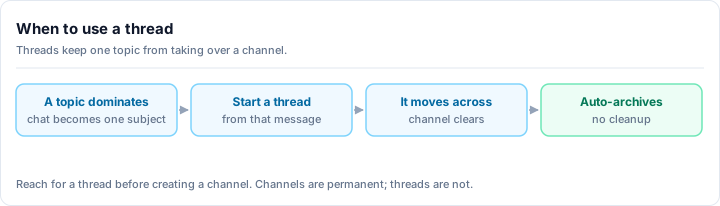
A Discord thread is a temporary sub-conversation that branches off a text channel, either from a specific message or from the channel itself. Unlike creating a new text channel, a thread is lightweight: it lives inside its parent channel, inherits that channel's permissions, and archives itself automatically after a set idle period of one hour, one day, three days or a week. Anyone who can send messages in the parent channel can reply in its threads, and members can follow a single thread without subscribing to everything else in the channel. Threads exist to stop the most common failure in an active Discord server, where two conversations run at once and the slower one gets buried. Use one whenever a single message is about to generate its own extended discussion, such as a support question, a bug report, or an event plan.
When threads are the right tool:
- A member asks a detailed question that deserves a real answer without derailing the channel
- An announcement generates discussion that would otherwise flood the main channel
- A project or plan needs collaborative back-and-forth without polluting general chat
- Support questions that need follow-up without others having to scroll through them
- Live events where different sub-discussions naturally happen in parallel
When threads are not the right tool:
- Ongoing discussion topics that should have their own dedicated channel
- Short exchanges that don't warrant the overhead (just reply in the channel)
- Very long-running projects (create a dedicated channel instead)
Forum channels vs. threads
If your server consistently needs organized multi-topic discussion, consider Forum channels instead. Forum channels make every message a thread automatically and present them in a browsable grid. Threads inside text channels are better for spontaneous focused conversations; forum channels are better for structured, recurring organized discussion.
How to Create a Thread
Hover over any message in a text channel
Move your cursor over the message you want to start a thread from. A row of reaction icons appears on the right side of the message. Click the three-dot menu (or look for the speech bubble icon) and select Create Thread.
Name your thread
A dialog appears asking for a thread name. Write something descriptive - "Help with server setup question" is better than "question". Members browsing the Threads panel use this name to decide whether to join, so make it clear at a glance what the thread is about.
Set the auto-archive duration
Choose how long the thread stays active before auto-archiving after its last message: 1 hour, 24 hours, 3 days, or 1 week. For a quick help exchange, 1 hour is fine. For a project thread that people return to periodically, use 1 week.
Add a slowmode (optional)
If the thread is likely to get fast, overlapping replies - a community vote, a busy Q&A thread - set a slowmode interval to keep replies from stacking chaotically. This is optional and can be skipped for most threads.
Send and participate
Click Create Thread. The thread now appears as a sub-section under the original message in the channel and inside the Threads panel. Type your first message to start the conversation. Members who want to follow the thread can click Join Thread to get notifications.
Creating a Thread Without a Parent Message
You can also start a thread directly from the channel without attaching it to an existing message:
Click the thread icon in the message toolbar
In the message input box, click the hashtag/thread icon on the right side (it looks like a speech bubble with lines). This opens a new thread creation dialog for the channel rather than a specific message.
Name and configure the thread
Same as before - add a name, set auto-archive duration, and optionally set slowmode.
Write your opening message
Type your first message, which becomes the thread's starting point. Members see this when browsing the Threads panel.
How Threads Interact With Moderation
Threads inherit their parent channel's permissions, which is the single most useful thing to know about moderating them. A member who cannot send messages in the parent cannot post in its threads, and AutoMod rules that apply to the channel apply inside the thread too, so keyword and spam filters keep working without separate configuration. Anyone holding Manage Messages in the parent can delete messages inside any of its threads, and Manage Threads lets a moderator rename, archive, lock or pin one. Every one of those actions is written to the server's Audit Log with the acting moderator's name attached, so thread moderation is reviewable in exactly the way channel moderation is. A Timeout applied at server level silences a member everywhere, threads included. The one thing that does not inherit is the archive timer, which each thread carries individually.
Managing Threads as a Moderator
The Manage Threads permission
Any role with Manage Threads permission can archive, unarchive, lock, delete, and edit the name of any thread in their accessible channels. By default, this is an elevated permission - give it to your mod team.
Locking a thread: Right-click or use the three-dot menu on a thread and select Lock Thread. Locked threads can be read but no new replies can be posted. Use this for closed decisions, completed help threads, or threads that have run their course.
Archiving a thread manually: Use the three-dot menu → Archive Thread. This hides the thread from active view but keeps it searchable and readable. Members can unarchive it by posting a reply.
Deleting a thread: Permanently removes the thread and all its messages. Use this only for threads that violate rules or contain content that shouldn't be archived. Deletion cannot be undone.
Editing thread name: Right-click the thread in the sidebar or use the three-dot menu → Edit Thread Name. Useful if a thread's topic drifted from its original name.
Do You Need a Bot for Threads?
For everyday use, no. Discord's own thread tooling covers creating, archiving, locking and pinning without anything installed. A bot earns its place for automation: opening a thread automatically on every post in a support or showcase channel, applying a Timeout or a slow mode to a thread that has got heated, or reporting thread activity alongside the rest of your server stats. An all-in-one such as Rally Bot covers this alongside moderation and roles, rather than as a separate install.
Thread Permissions
Discord's thread permission system is granular. You can control thread creation and participation independently:
| Permission | What It Controls |
|---|---|
| Create Public Threads | Start threads visible to all members |
| Create Private Threads | Start threads only invited members can see |
| Send Messages in Threads | Reply to existing threads |
| Manage Threads | Archive, lock, delete, rename any thread |
For a read-only channel (like announcements) where you still want members to discuss each post in threads:
- Set @everyone: Send Messages → Deny
- Set @everyone: Create Public Threads → Allow
- Set @everyone: Send Messages in Threads → Allow
This lets members create and reply to threads on announcement posts without being able to post in the main channel directly.
Private threads for sensitive conversations
Private threads are only visible to members you explicitly invite. They're useful for moderator discussions on public posts, support conversations that need privacy, or staff-only coordination about a public channel. Only members with the Create Private Threads permission can start them.
Best Practices for Server Owners
Announce your thread culture. New members don't naturally think to use threads. A note in your rules or welcome channel that says "for detailed questions, please start a thread" sets the expectation and dramatically improves channel organization.
Name threads clearly. Vague thread names ("question," "help," "this") are useless. Encourage (or enforce via server norms) descriptive names. "Python list comprehension question" helps future members searching for the same answer.
Close resolved threads. In help-focused channels, lock threads once questions are answered. This creates a visual signal to other members - and future searchers - that the thread has a resolution.
Use threads for announcement discussions. When you post an announcement, consider immediately starting a thread on it titled "Questions about this announcement" or "Feedback welcome." This gives members a natural place to respond without flooding the announcement channel itself.
Don't force threads for everything. Threads are a tool, not a rule. Quick back-and-forth conversations don't need threads - just reply in the channel. Over-threading creates navigation fatigue. Use them where they genuinely help.
Next Steps
- How to use Discord Forum channels - the structured, thread-first channel type for organized communities
- Discord server setup guide - full channel architecture and permission best practices
- Discord moderation guide - managing conversations as your community scales
Threads are one of the most impactful changes you can make to a noisy Discord server. Done well, they transform chaotic general channels into organized, searchable conversation spaces - without needing to create a new channel for every topic.