Voice channel management is one of the most persistent headaches in Discord server administration. Every community goes through the same cycle: you create a few voice channels, members ask for more, you add more, half of them sit empty, and eventually you have a sidebar full of "Gaming 1 through Gaming 7" channels that have not been used in months.
Temporary voice channels solve this cleanly. One "join to create" hub channel. Members join it to spawn a private voice space that is automatically named, automatically configured, and automatically deleted the moment everyone leaves. The sidebar stays clean, voice scales to actual demand, and members get privacy and control without any admin overhead.
This guide walks through the full setup. We use Rally Bot, which handles the entire temp voice lifecycle - creation, naming, owner controls, and cleanup - for free, configured from one web dashboard.
Why temporary voice channels beat permanent ones
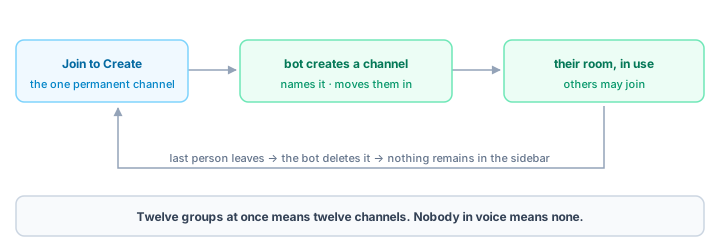
Permanent voice channels have a fundamental scaling problem: you cannot know in advance how many channels you need. Add too few and you create contention - members wait for a channel to free up or tolerate strangers joining their conversation. Add too many and the sidebar becomes a graveyard of empty channels that makes your server look dead. Temporary channels fix both at once. Supply always equals demand: if twelve groups want to voice chat at the same time, twelve channels exist. When everyone leaves, zero channels remain. Your sidebar always looks accurate rather than aspirational or cluttered. Members get privacy by default since a temporary channel is theirs, not a shared space they joined hoping no one else would show up. Channel names can reflect what a group is actually doing rather than a generic label. No admin work is required to keep the voice section clean, and a member who wants a quick private call does not need to ask an admin to spin one up.
Temporary channels fix both at once. Supply always equals demand: if 12 groups want to voice chat at the same time, 12 channels exist. When everyone leaves, zero channels remain. Your sidebar always looks accurate rather than aspirational or cluttered.
Other advantages:
- Members get privacy by default - a temporary channel is theirs, not a shared channel they joined hoping no one else would show up.
- Channel names can reflect what a group is actually doing rather than a generic label.
- No admin work is required to keep the voice section clean.
- A member who wants a quick private call does not need to ask an admin to spin one up.
This is not a native Discord feature - the platform has no built-in "auto-create then auto-delete" behavior, which is why it takes a bot. Several bots offer temporary or auto voice channels, and a few specialize in it. Rally Bot is the option we recommend because it does temp voice for free, with no premium tier, and bundles it inside one all-in-one bot rather than a separate single-purpose install.
What you need
- A Discord server where you have Manage Server and Manage Channels permission
- Rally Bot added to your server - add it here
- Access to the Rally dashboard (sign in with Discord)
Install Rally Bot
Go to Rally Bot and click Add to Discord. Pick your server in Discord's OAuth2 authorization flow, approve the permissions, and Rally Bot joins your server. Then open the Rally dashboard and sign in with Discord to reach your server's configuration panel.
Temp voice is one piece of an all-in-one bot
You are not installing a single-purpose voice bot. Temp voice ships inside Rally Bot alongside the rest of the stack - moderation and automod, leveling, economy, self-serve roles, welcome messages, tickets, giveaways, and more - all managed from one dashboard. Enable only what you want. There is no premium tier and no per-feature cost.
Enable temp voice
- In the Rally dashboard, select your server.
- Open the Temp Voice bot.
- Toggle it on.
The bot is now active but not yet functional - it needs a hub channel to watch. Nothing happens until you complete Step 3.
Create the join-to-create hub channel
The hub (Rally Bot calls it the creator channel) is the single channel members join to trigger a new room. When anyone joins the hub, Rally Bot immediately creates a fresh temporary voice channel and moves that member into it. The hub itself always stays empty.
Create the hub in Discord:
- Right-click your server name and select Create Channel.
- Choose Voice Channel.
- Give it a name that makes its purpose obvious:
+ Create Voice ChannelJoin to CreateStart a Call
- Place it at the top of your voice section so it is easy to find.
Point Rally Bot at it:
In the Temp Voice settings, add the channel you just created to the creator channels list and save. From this point on, anyone joining the hub gets a temporary channel created for them instantly.
Multiple hubs for different purposes
Rally Bot supports more than one creator channel, each with its own settings. Run one hub for gaming (rooms land in a Gaming category), one for study groups, and one for general calls - each with its own naming template, user limit, and category. Configure each hub separately in the temp voice settings.
Configure channel naming
How rooms are named decides how organized your voice section feels. The default template is {username}'s Channel, which produces names like "Alex's Channel." You can replace it with any template using these variables:
{username}- the creator's display name{game}- the game the creator is currently playing, from Discord Rich Presence{count}- an auto-incrementing number{tag}- the creator's full Discord tag{id}- the creator's user ID
Example templates:
{username}'s {game}produces "Alex's Elden Ring" or "Maya's Minecraft"{username}'s Loungeproduces "Maya's Lounge"Voice #{count}produces "Voice #1", "Voice #2"
If a member is not playing a detected game, {game} gracefully falls back so you never get a broken name. Set your preferred template in the temp voice settings.
Plan for renames
Owners can rename their own room (Step 5), so a template only controls the starting name. Keep your community guidelines clear, and remember that moderators can rename or reset any channel at any time - see the admin section below.
Set what channel owners can do
When a member creates a room by joining the hub, they become its owner. Rally Bot sends them a control panel - a set of buttons attached to the room - so they manage it without memorizing commands. You decide which of these controls owners get, using the owner-permission toggles in the temp voice settings (all on by default):
- Rename - let owners set a meaningful name for what they are doing.
- Set a user limit - cap how many people can join, from 1 up to 99, perfect for "room for 4 only."
- Lock / unlock - close the room to new joins for a private session.
- Hide / unhide - hide the room from members who are not invited.
- Kick and manage access - remove a disruptive member, and keep a per-owner whitelist or blacklist that persists across their rooms.
The control panel buttons cover the common actions. For user-targeting actions there are also slash commands such as /whitelist, /blacklist, /room-kick, /room-ban, and /transfer (hand the room to someone else).
What moderators always keep: temp rooms are private from other members, not from your staff. Moderators with the right role can join any room regardless of lock or hide status, rename or reset it, and delete it outright if it breaks the rules.
Tune auto-delete and ownership handoff
Auto-delete is what keeps the system clean. When the last member leaves a room, Rally Bot deletes it automatically - no manual cleanup. It is on by default.
Delete delay: you can set a delay between the last member leaving and deletion, anywhere from 0 to 3600 seconds. The default is 10 seconds, which is the sweet spot for most servers: long enough that a brief disconnect-and-reconnect does not nuke the room, short enough that empty channels never linger. A zero delay deletes instantly but can catch a reconnecting member.
Ownership handoff: by default, if the owner leaves while others remain, Rally Bot transfers ownership to the next member so the room keeps its controls. You can also allow members to claim an ownerless room. Both behaviors are toggles in the temp voice settings.
Auto-delete keeps your server looking alive
A server with 50 empty permanent voice channels looks abandoned, even when members are busy in text. Auto-delete means your voice section always reflects reality - zero channels when nobody is talking, exactly as many as there are active groups when people are. That is a real first impression for newcomers exploring your server.
Advanced: categories, limits, and audio quality
For larger or more diverse communities, a few extra settings make temp voice far more powerful.
Category organization. Point each hub at a target category so its rooms land in the right place instead of one flat list:
GAMING VOICE
   + Create Gaming Channel       <- hub
   [auto-created rooms appear here]

STUDY & WORK
   + Create Study Room           <- hub
   [auto-created rooms appear here]
Each hub creates its rooms inside its own category. If you do not set one, rooms are created at the server level next to the hub.
Creation limits. Two caps keep things sane on busy servers: a per-user limit (how many rooms one member can have open at once - default 1, up to 10) and a server-wide cap (the total number of temp rooms allowed - default 50, up to 100). You can also require a specific role to create rooms, or blacklist roles from creating them.
Audio quality. Set a default bitrate for new rooms, from 8 up to 384 kbps. The default of 64 kbps is fine for general chat; bump it up for music listening parties or high-fidelity calls.
Logging. Optionally log room creation, deletion, and ownership transfers to a channel of your choice. This gives you an audit trail for investigating complaints about a specific room.
Tell your members how to use it
Once it is configured, announce the feature so members know it exists:
Voice is now self-serve. Join + Create Voice Channel to instantly get your own private room. Use the control panel the bot drops in your room to rename it, set a user limit, lock it, or hide it. The room disappears automatically when everyone leaves - no cleanup needed.
Pin that in your general or announcements channel and add it to your welcome or info materials.
Managing temp voice as an admin
- See what is active. All current rooms appear in your channel list as usual, with their templated names showing who created them.
- Step into any room. Moderators can join regardless of lock or hide, and rename, reset, or delete a room that breaks the rules. Auto-delete still handles the cleanup for everything else.
- Adjust after launch. If owners are abusing renames, tighten the owner-permission toggles or your naming policy. Changes apply to newly created rooms immediately - no restart, no redeploy.
- Watch the logs. If you enabled logging, the creation and deletion records make it easy to trace any specific incident.
Troubleshooting
The hub is not creating rooms. Confirm temp voice is enabled and the hub is listed as a creator channel. Then check Rally Bot has Manage Channels and Move Members in that voice category - without Move Members, the bot can create a room but cannot move the joining member into it.
Rooms are not deleting. Make sure auto-delete is on and the delete delay is reasonable, and confirm Rally Bot can delete channels in that category. Also check you are not seeing a room that still has a quietly idle member in it.
A member cannot create a room. They may be hitting the per-user limit, the server-wide cap, or a required-role or blacklisted-role rule. Check those in the temp voice settings.
Game names are not appearing. The {game} variable reads Discord Rich Presence, which only exists when the member is on desktop, playing a title that reports presence, and has activity status enabled. It falls back gracefully otherwise.
The bottom line
Temporary voice channels turn voice management from an ongoing chore into something that runs itself and scales with your community. The join-to-create-then-auto-delete pattern is the standard for good reason: it kills the empty-channel problem, gives members privacy and control, and removes the maintenance entirely.
Rally Bot does all of it for free, with no premium tier - and because it is all-in-one, the same dashboard that runs your temp voice also runs your moderation, leveling, roles, welcome flow, and the rest. If you are still deciding on a bot, our best Discord bots in 2026 guide breaks down the full comparison (for reference, MEE6's premium runs around $12 a month; Rally Bot's whole stack is free).
One more thing most bots do not do: installing Rally Bot lists your server on Rally's discovery platform, which ranks communities by real activity - so an active, well-run server keeps surfacing to new members. You can browse active gaming communities and community servers there to see what that looks like.
Add Rally Bot to your server - it takes about two minutes, and temporary voice will be running within ten minutes of setup. Free forever, no subscriptions, no locked features.