Roles are the foundation of Discord server organization. They control what members can see, what they can do, who they are in your community, and how they're distinguished from one another. A well-designed role structure makes your server self-organizing. A poorly designed one creates confusion, permission conflicts, and constant manual work.
This guide covers everything you need to set up a role system that actually works - from hierarchy and permissions to self-assignable reaction and button roles and automatic roles on join.
Understanding Role Hierarchy
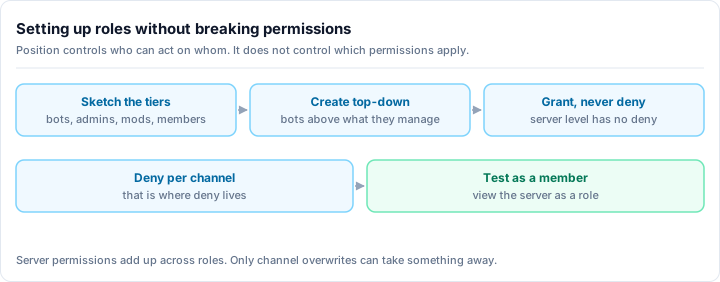
Discord roles are ordered in a single vertical list, and a role's position in that list, not its name or its permissions, decides what it can act on. A role can only assign or edit roles positioned below it, and a moderator can only time out, kick or ban a member whose own highest role sits below the moderator's highest role. This is why a member with Administrator can still be unable to remove someone above them, and why the bot you just installed cannot assign a role you placed above it. Get the order wrong and permissions that look correct in the settings panel silently fail in practice. Set the hierarchy before creating any individual role, because moving roles afterwards silently changes who is able to act on whom right across the entire server.
Roles in Discord are ordered in a vertical list - higher position means higher authority. This affects everything:
- A role can only manage or assign roles below it in the list
- A role can only modify members whose highest role is below the acting role
- The @everyone role is always at the bottom and applies to every member
Hierarchy mistakes cause broken moderation
The most common role setup mistake: placing bot roles or moderator roles too low in the hierarchy. If your moderator role sits below a regular member role, mods can't kick or timeout members who have that role. If your bot role is below the roles it needs to assign, the bot will throw errors. Always verify the order after adding new roles.
How to Create a Role
Open Server Settings
Click your server name at the top of the channel list to open the dropdown, then select Server Settings. Navigate to the Roles section in the left sidebar.
Create a new role
Click the Create Role button (or the + icon next to "Roles"). A new role named "new role" appears at the bottom of the list. Click it to begin editing.
Name and color the role
Give the role a clear, descriptive name. Assign a color - colored roles show the member's name in that color throughout the server. Use color intentionally: it's a visual signal. Moderators might be red or orange. Trusted members might be blue. Bots might be purple. Too many colors create noise; use them for roles that benefit from quick visual identification.
Configure display and mention settings
- Display role members separately from online members - Hoists the role to its own section in the member list sidebar. Use this for staff and important community roles. Don't hoist every role or the sidebar becomes cluttered.
- Allow anyone to @mention this role - Leave this off for most roles. Enable it only for roles where community-wide pings are appropriate (event notifications, announcements opt-in roles).
Set permissions
The Permissions tab controls what members with this role can do server-wide. Assign permissions that match the role's purpose (covered below in the permissions section).
Position the role in the hierarchy
Back on the Roles list, drag the role to the correct vertical position. Higher = more authority. Staff roles go near the top; decorative or cosmetic roles go near the bottom; bots go above the roles they assign but below human staff.
Recommended Role Structure
A clean, functional role structure for most community servers:
Staff Roles (top of hierarchy):
- Server Owner (automatic)
- Administrator - full permissions, no restrictions
- Senior Moderator - ban/kick/timeout/manage channels
- Moderator - timeout/mute/delete messages, no ban
- Helper/Trial Mod - read mod channels, limited action powers
Bot Roles:
- Place bots here, above the roles they need to manage or assign
Community Trust Roles:
- Verified - members who passed a welcome gate or verification
- Server Booster - Discord's automatic boost role
- Trusted/Veteran - long-standing active members
Opt-In Notification Roles:
- Event Announcements
- Game Announcements
- Art Announcements
- (whatever your server's content categories are)
Cosmetic or Community Roles:
- Color roles, pronouns, platform roles (PC/Console/Mobile)
- These go near the bottom since they carry no permissions
@everyone (automatic, always at bottom)
Keep roles purposeful
Every role should do something - grant a permission, display a title, or let members opt into something. Roles that exist for no clear reason add visual clutter and confuse new members. Audit your role list periodically and delete anything that has no active members or no purpose.
Setting Permissions Correctly
Permissions cascade: @everyone sets the default, and individual roles layer additions or overrides on top. Work from the bottom up.
@everyone permissions - recommended defaults:
- View Channels: Allow (or deny for private servers)
- Send Messages: Allow
- Read Message History: Allow
- Add Reactions: Allow
- Connect (voice): Allow
- Speak (voice): Allow
- Mention @everyone: Deny (always)
- Manage Messages: Deny
- Kick Members: Deny
- Ban Members: Deny
- Manage Channels: Deny
- Manage Roles: Deny
Moderator role - what to add:
- Kick Members: Allow
- Timeout Members: Allow
- Manage Messages (delete/pin): Allow
- View Audit Log: Allow
- Mute Members in voice: Allow
- Move Members in voice: Allow
Administrator role - use sparingly:
- Administrator: Allow (grants all permissions, bypasses channel overrides)
- Only give this to people you fully trust - it cannot be selectively restricted
The Administrator permission is absolute
The Administrator permission bypasses every channel-level permission override. A member with Administrator can see every channel, regardless of any deny rules you've set. Only grant Administrator to your core trusted staff, not to bots unless they explicitly require it (most don't).
Self-Assignable Roles: Native vs Bots
Most active servers let members self-assign certain roles - notification preferences, platform affiliations, pronouns, color choices. You have two layers to work with.
Discord's built-in tools. Discord now ships its own self-serve role experience through Onboarding and the Channels & Roles menu. During onboarding, new members can pick interest roles from a list, and the Channels & Roles tab lets them toggle opt-in roles at any time. For a small server with a handful of straightforward opt-in roles, this native UI is enough and it's worth turning on regardless of what else you run.
Role bots, for everything beyond the basics. Native onboarding is deliberately simple. The moment you want richer panels, conditions, or roles tied to activity, a bot does more:
- Reaction roles - members click an emoji on a posted message to grant or remove a role.
- Button and dropdown panels - cleaner than reactions, especially on mobile, with labeled buttons or a select menu in a dedicated channel.
- Conditional logic - roles that require another role first, roles that swap a member between mutually exclusive options (one platform, one region, one color), or roles unlocked at a leveling milestone.
- Auto-roles on join - covered in its own section below.
The bot that does this
Rally Bot gives you reaction, button, and dropdown role panels plus auto-roles on join, all configured from one web dashboard, free and uncapped. More on why we recommend it below.
Set self-assignable roles up in a dedicated #roles channel, separate from your regular channels, so members can manage their roles without cluttering active conversation.
Why We Recommend Rally Bot for Roles
If you want self-serve role panels and auto-roles without juggling a separate bot for each, Rally Bot is the simplest place to start. It's a free, all-in-one community bot managed from a single web dashboard, with no premium tier and no feature gating - so reaction, button, and dropdown role panels and automatic roles on join are all available at no cost, in the same place you manage the rest of your server.
Free, and built to stay that way
Rally earns through server discovery, not by paywalling features. Installing Rally Bot lists your server on Rally's discovery platform, where communities are ranked by real activity instead of bump counts - so an active, well-organized server keeps surfacing to new members. There's no business reason to ever lock role panels behind a subscription, which is exactly what happens on bots whose revenue depends on it.
Because it's all-in-one, the role system feeds back into everything else: a member self-assigns a notification role, earns a level-up role from activity, gets an auto-role on join, and your moderation, welcome messages, leveling, and the rest of the stack all live behind the same dashboard. That's the whole reason bot-stacking used to hurt in this category - a roles bot here, a welcome bot there - and it's the gap Rally Bot closes.
Add Rally Bot to your server - free, no credit card, no locked features.
For the full picture of how it compares to the classic options, see our best Discord bots in 2026 breakdown, and if you're moving off Carl-bot specifically, the Carl-bot alternative guide walks through migrating reaction roles.
Automatic Roles on Join
An auto-role is assigned the moment a member joins, before they do anything. It's one of the highest-value role automations because it drives how new members experience your server from second one.
Common patterns:
- A baseline member role so every new arrival immediately gets default permissions and channel access.
- A
Newcomeror unverified role that gates the server until the member passes a welcome or verification step, then gets swapped for aVerifiedrole. This is your front line against raids and spam accounts. - Progression roles layered on top later, awarded automatically at leveling milestones.
Decide the join state
Choose whether new members land in a full-access member role or a restricted newcomer role that they earn out of. Restricted-by-default is safer for public servers; full-access is fine for small private ones.
Configure the auto-role in your bot dashboard
In Rally Bot's dashboard, set the role to grant on join. If you're gating, pair it with a verification step so the role swaps automatically once the member clears the gate.
Check the hierarchy
Confirm the bot's own role sits above every role it assigns on join. If the bot role is too low, the assignment silently fails - this is the single most common reason auto-roles "don't work."
Pair auto-roles with a welcome message
An auto-role plus a welcome message that points new members to your #roles channel is the cleanest onboarding flow there is: they arrive, get their baseline role, and are immediately nudged to self-assign their interests. Both live in the same dashboard, so it's a two-minute setup.
Integration Roles
When members link external services to Discord (Twitch, YouTube, Steam), or when bots are added, Discord automatically creates and assigns integration roles. These:
- Count toward your 250-role limit
- Cannot be assigned manually to members
- Appear in your role list with the linked service's icon
- Can be positioned in the hierarchy but cannot have their permissions manually edited
Position integration roles below your human staff roles and above general member roles. They're usually harmless but audit them occasionally - disconnected services leave orphan roles.
Channel-Level Permission Overrides
Roles set server-wide defaults, but channels can override them. Right-click any channel, then Edit Channel, then Permissions to add role-specific overrides.
Common uses:
- Staff-only channels: Deny @everyone View Channel; explicitly Allow your moderator roles
- Announcement-only channels: Deny @everyone Send Messages; only staff can post
- Opt-in channels: Deny @everyone View Channel; members get access by self-assigning a role
- Bot command channels: Allow all message permissions for @everyone in one channel so bot spam stays contained
Channel overrides take precedence over role permissions. An explicit Deny at the channel level overrides an Allow at the role level - with one exception: the Administrator permission bypasses all channel overrides.
Next Steps
- Discord server setup guide - full server structure from channels to categories
- Discord moderation guide - using your role structure for effective moderation
- How to grow your Discord server - building the community that makes a good role structure meaningful
A well-designed role system largely runs itself - members know where they stand, moderators have the tools they need, and the permission hierarchy prevents problems before they start. Auto-roles and self-serve panels remove the manual busywork, so you set it up once and let it run.
Ready to put it on autopilot? Add Rally Bot to your server - free, all-in-one, managed from a single dashboard, with reaction and button role panels plus auto-roles on join built in. Then explore active gaming communities and anime servers on Rally to see what a well-organized community looks like.