Bots are what turn a basic Discord server into a real community platform. They handle moderation, assign roles, track XP, run giveaways, post welcome messages, and dozens of other jobs that would be exhausting to do by hand.
Adding one is straightforward once you understand how Discord's authorization system works. This guide walks through the whole process - what you need before you start, the OAuth authorize flow, reviewing permissions safely, and getting the bot configured. The steps work for any bot; at the end we also recommend one that's a good place to start.
Before You Start
To add a bot to a server, you need the Manage Server permission. If you own the server, you already have it. If you're a moderator or admin, check your role settings - Manage Server is a specific permission that must be granted to your role. Regular members cannot add bots. Before you start, decide what you actually need. The old approach was adding a separate bot for every job: one for moderation, one for leveling, one for roles, one for welcome messages. Each brought its own dashboard, permissions, and potential failures. In 2026, a single all-in-one bot often covers the whole list, meaning fewer permission conflicts, one configuration place, and far less to maintain. Whichever route you take, the authorization steps remain the same. Every bot you add multiplies permission conflicts and configuration overhead, so begin with one capable all-in-one bot and only add a second when you hit a genuine gap the first cannot fill.
The other thing to decide is what you actually need. The old habit was to add a separate bot for every job: one for moderation, one for leveling, one for roles, one for welcome messages. Each one brought its own dashboard, its own permissions, and its own way of breaking. In 2026 you often don't have to: a single all-in-one bot can cover the whole list, which means fewer permission conflicts, one place to configure everything, and far less to maintain. Whichever route you take, the steps in this guide apply either way.
Start with one, add more only if you must
Every bot you add multiplies permission conflicts, configuration overhead, and points of failure. Begin with one capable all-in-one bot. Only add a second when you hit a genuine, specific gap the first bot can't fill.
The Bot Worth Adding First
If you're adding a bot to a fresh or growing server, the simplest strong choice is Rally Bot. It's a complete server-management and community platform in a single install, configured entirely from one clean web dashboard - no commands required to set it up.
In one bot you get the core of what most servers need:
- Moderation and automod - spam, link, and word filtering, tiered moderator roles, warnings, timeouts, kicks, bans, and full audit logging.
- Leveling - XP for messages and voice activity, role rewards at milestones, and leaderboards.
- Economy - currency, a shop, daily rewards, and games.
- Roles - self-serve role panels and automatic roles on join.
- Welcome and goodbye messages, polls, starboard, suggestions, temporary voice channels, and music - all in the same bot.
Two things set it apart from the bots you might be comparing it against. First, it's genuinely free with no premium tier - there's no feature locked behind a subscription, because Rally earns through server discovery rather than by paywalling bot features. Second, installing it lists your server on Rally's discovery platform, where communities are ranked by real activity instead of bump counts, so an active server keeps surfacing to new members.
Add Rally Bot to your server - free, no credit card, no locked features.
For the full category-by-category breakdown of how it compares to the classic bots, see the best Discord bots in 2026.
How the OAuth Authorize Flow Works
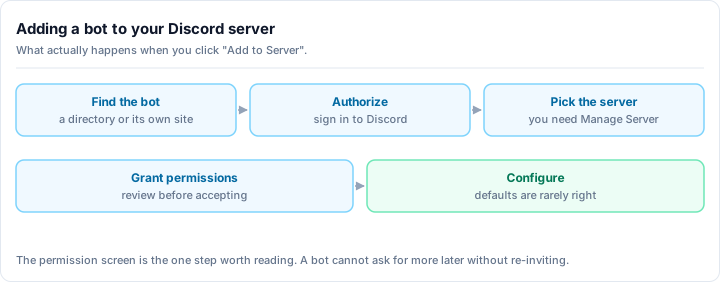
Discord adds every bot through an OAuth authorization link. You don't "download" or "install" a bot in the usual sense - you grant a bot application access to a server you manage. Here's exactly how it works, using any bot's invite link:
Open the bot invite link
Click the bot's Invite, Add to Server, or Add to Discord link. For Rally Bot, that's the Add Rally Bot to your server button. The link opens Discord's OAuth authorization page in your browser. If you're not signed in to Discord, you'll be asked to log in first.
Select your server
A dropdown lists every server where you have the Manage Server permission. Pick the server you want to add the bot to. If a server you expect to see is missing, you don't have Manage Server on it - ask that server's owner or an admin to add the bot instead.
Review the requested permissions
This is the step that matters most. Discord shows you exactly what the bot is asking for. Read the list. Common, legitimate permissions include:
- View Channels / Read Messages
- Send Messages
- Embed Links
- Manage Messages (needed for moderation and starboard features)
- Manage Roles (needed for leveling rewards and role panels - it has to sit above the roles it assigns)
- Connect / Speak (needed for music or voice features)
The one red flag to watch for is a bot requesting Administrator without a clear reason. A well-built bot asks only for the specific permissions its features need.
Complete the CAPTCHA and authorize
Click Authorize, complete any CAPTCHA Discord shows, and the bot joins your server immediately. You'll see a confirmation, and the bot appears in your member list.
Never grant Administrator unless you are certain
Administrator lets a bot do everything - read all messages, manage every channel, ban members, even delete the server in some cases. Most bots never need it. If a bot demands Administrator and you can't find a documented reason why, decline and choose a better-scoped bot. Granting only the permissions a feature actually requires is the single most important habit in running a safe server.
What Happens to Permissions and the Bot Role
When a bot joins, Discord automatically creates a role named after it. That role is what defines what the bot can do, and you'll see it in your role list.
A few things worth knowing:
- Role position matters. A bot that manages roles or moderates members needs its role positioned above the roles it acts on. A moderation bot can't time out or ban a member whose top role sits above the bot's role.
- You can adjust permissions after the fact. Edit the bot's role directly, or use channel-level permission overrides to restrict where it operates.
- Integrations is your control panel. Go to Server Settings → Integrations → [Bot Name] to see the exact permissions a bot holds and to limit which commands work in which channels or for which roles.
Configuring the Bot After Adding
Adding a bot is only half the job - most need configuration before they're useful. How you do that depends on the bot.
Web Dashboards
For anything with real depth - moderation, leveling, economy, roles - a web dashboard is far easier than typing setup commands in Discord. You log in with Discord, select your server, and configure everything through a visual interface. Rally Bot does all of its configuration this way: one dashboard for every feature, with nothing to memorize.
Web dashboards beat command-based setup for complex bots
If a bot has more than a handful of settings, look for a Dashboard or Panel link on its site. Clicking through toggles and dropdowns is much faster and less error-prone than running /config over and over in a channel.
Slash Commands
Many bots also expose slash commands. After adding a bot, type / in any channel to see what it offers. Useful first ones to look for:
/help- lists the bot's commands and how to use them/setupor/config- opens a setup flow (for bots that configure in Discord rather than on the web)
Channels and Roles
Most bots need to know which channels and roles to use. Typical first-setup steps:
- Set a log channel for moderation actions.
- Point welcome and goodbye messages at the right channel.
- Choose any roles the bot should auto-assign on join.
- Decide which channel bot commands belong in, to keep bot spam out of main chat.
For a deeper, end-to-end configuration walkthrough, see the Discord bot setup guide.
Managing Multiple Bots
If you do end up running more than one bot, organization keeps things sane.
- Prevent command conflicts. If two bots both offer
/help, Discord shows both when a member types it. Where bots overlap, disable the duplicate command on one of them. This is exactly the kind of friction an all-in-one bot avoids entirely. - Restrict bot commands to specific channels. A dedicated
#bot-commandschannel keeps interactions out of your main discussion. - Review your bots periodically. Bots you added and never configured, or ones whose features another bot already covers, should be removed. Server Settings → Integrations lists every bot and webhook in the server.
- Monitor permissions. The same Integrations page shows what each bot can actually do, so you can tighten an over-permissioned bot at any time.
Troubleshooting Common Problems
Bot is offline
Its host is down or the process crashed - the developer's issue, not yours. Check the bot's support server for status updates. If it's been offline for more than a day or two, switch to a maintained alternative.
Bot isn't responding
Work through these in order:
- Is the bot online? (Green dot in the member list.)
- Does it have permission to view and send messages in this channel?
- Is the command spelled correctly? (Type
/to see the real list.) - Is the bot configured to respond in this channel, or restricted elsewhere?
- Was it removed without you noticing? Check Server Settings → Integrations.
Bot says "Missing Permissions"
It's trying to do something its role can't. Match the action (ban a member, delete a message, assign a role) to the permission, grant it on the bot's role, and confirm the role is high enough in the hierarchy for moderation actions.
Slash commands aren't showing up
It can take up to an hour for Discord to register a new bot's slash commands globally. If they still don't appear after that, remove and re-add the bot, or check its support server for a known issue.
The Bottom Line
Adding a bot is simple: open the invite link, review the permissions, click Authorize. The harder question is which bot to add - and in 2026 the answer for most servers is one capable all-in-one bot rather than a stack of single-purpose ones. You get fewer permission conflicts, one dashboard, and far less to maintain.
Ready to set yours up? Add Rally Bot to your server - free, one dashboard, no locked features. Then browse active gaming communities, tech communities, and anime servers on Rally to see what a well-run, discoverable community looks like.