Understanding Discord's permission system is the difference between a secure, organized server and a chaotic one where members have too much access.
Most Discord security incidents come down to permissions being set wrong rather than an account being stolen. This guide prevents that.
Understanding Role Hierarchy
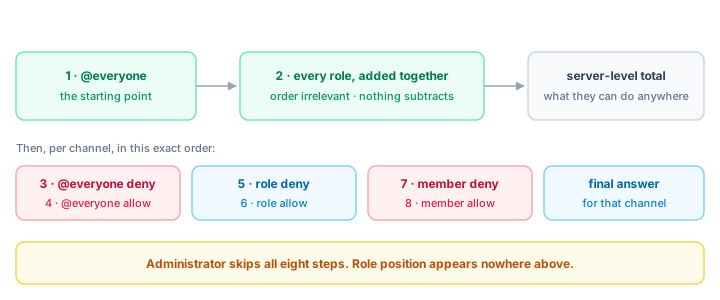
Discord's role hierarchy decides who can act on whom. It does not decide which permissions a member has, and confusing those two systems is the single most common cause of a misconfigured server. At the server level, permissions from every role a member holds are simply added together: if any one of their roles grants "Ban Members", they can ban, and no higher role can take that away. There is no "deny" at the server level at all, because a role either grants a permission or stays silent on it. What role position actually controls is hierarchy, meaning you can only kick, ban, or manage roles for members whose highest role sits below yours, which is why @Bots belongs at the top. Denies exist only in channel permissions, where they are applied in a fixed order after the server-level total has been worked out.
The rule people get wrong
Server permissions add up. They do not override each other.
A member's server-level permissions are the sum of every role they hold. Discord's own documentation describes this as a bitwise OR: each role contributes what it grants, and nothing subtracts. A role toggle in Server Settings has two states, on and off - "off" means this role does not grant it, not this role blocks it.
So the common worry - "my @Muted role denies Send Messages, will it stop them?" - has an uncomfortable answer: no. A role cannot take a permission away. Muting works by denying Send Messages as a channel permission, which is a different mechanism entirely.
Where role position does matter
Position governs actions on other people, not permissions. You can only kick, ban, time out, or manage roles for a member whose highest role is below yours - and you can only edit roles below your own. That is the real reason @Bots belongs at the top: not so its permissions win, but so the members it needs to moderate are beneath it.
Example: a member holds @Member and @Moderator.
- @Moderator grants "Ban Members"; @Member does not mention it
- Result: they can ban - because one of their roles grants it
- Moving @Member above @Moderator changes nothing about that permission. It only changes who each role can be used to act upon.
The Core Role Hierarchy
For most servers, use this structure (top to bottom):
- @Bots - All bots go here. Highest ensures they can manage other roles.
- @Admins - Full server control. Usually owner + 1-2 co-admins.
- @Moderators - Enforce rules. Can warn, mute, kick (but not ban Admins).
- @Members - Regular users who've verified or been approved.
- @Verified or @Guests - New members with limited channel access.
- @Muted - Lowest role for users who broke rules (timeout alternative).
Key rule: Each role should be more powerful than roles below it. Don't have random roles between tiers.
Setting Up Core Permissions
Administrator
Never give to members lightly. Administrator bypasses all permission checks. Use only for actual admins.
Moderation Permissions
Give @Moderators:
- Manage Messages
- Kick Members
- Timeout Members
- View Audit Log
Don't give:
- Ban Members (admins only)
- Manage Roles
- Manage Channels
- Administrator
Member Permissions
@Members should have:
- Send Messages
- Create Public Threads
- React to Messages
Don't give:
- Manage Channels
- Manage Messages
- Kick/Ban
- Administrator
Channel-Level Permissions
Channel permissions override role permissions for that specific channel. This is where you lock things down.
Public Channels (#general)
- @everyone can view and send messages
- @Muted deny "Send Messages"
Staff-Only Channels (#mod-logs, #staff-chat)
- @Moderators allow "View Channel"
- @everyone deny "View Channel"
High-Risk Channels (#rules, #warnings)
- @everyone can view but not send
- Use "Text Channels" category permission overrides
Self-Assignable Roles (Reaction Roles)
Let members pick roles for interests without staff involvement.
How to Create
- Create the roles in Server Settings → Roles
- Get the role IDs (enable Developer Mode, right-click role → Copy ID)
- Use a bot with reaction role support
- Post the reaction role message in an #intro or #roles channel
- Members click emojis to self-assign
What Makes Good Self-Assignable Roles
- Interests: #gaming, #art, #music (non-power roles)
- Notifications: opt-in for announcements
- Gaming genres: FPS, RPG, Casual
- Timezones: for gaming buddies finding each other
What NOT to Make Self-Assignable
- @Verified (requires verification, not self-assignment)
- @Moderator (staff only)
- @Muted (moderation role)
- Roles that grant access to restricted channels (security risk)
Common Permission Mistakes
Mistake 1: Role Below @everyone
If you create a role and it appears below @everyone in the hierarchy, you have it backwards. Drag it above @everyone.
Mistake 2: Giving Everyone Administrator
Never. This one mistake ruins servers. Use specific permissions instead.
Mistake 3: Complex Nested Overrides
Don't create 20 channels with 10 different override combinations. You'll forget why each override exists. Keep it simple: public channels have no overrides, restricted channels deny @everyone.
Mistake 4: Forgetting "View Channel" Permission
If a member has permission to send messages but not view the channel, they can't see it. Always grant both.
Mistake 5: Misconfiguring @everyone
The @everyone role applies to literally everyone. If you want to restrict a channel, deny @everyone view access, then allow specific roles. Don't give @everyone permissions you don't mean to.
Auditing Permissions Quarterly
As your server grows, permissions get messy. Quarterly audit:
- Review role hierarchy: Are bots at the top? Is it clear?
- Check each role: What permissions does it have? Do they match the role's purpose?
- Audit channels: Which channels are truly restricted? Do the overrides make sense?
- Test access: Ask a member "Can you see #staff-only?" If yes, that's wrong.
- Document changes: If you modify permissions, write why in a staff guide.
The Bottom Line
A clear role hierarchy with documented permissions beats complexity every time. Start with 6-7 core roles, lock down channels with overrides, use reaction roles for self-assignment, and audit quarterly as you grow.
Misconfig a few channels now, and you'll have a security breach later. Take 30 minutes to get it right.
Ready to build a secure, organized community? Add your server to Rally to reach members searching for well-managed communities like yours.