Adding a Discord bot looks simple - click "Add to Server" and it works. The difference between a clean, well-run server and a chaotic pile of conflicting bots comes down to three things most owners skip: choosing the right bots, scoping their permissions, and testing before going live.
The biggest setup decision happens before you invite anything: how many bots you run. For years the answer was four or five. In 2026 the smarter move is one capable all-in-one bot, with a single place to manage it. This guide walks through the full setup - finding bots, inviting them, permissions, role hierarchy, channels, and ongoing maintenance - and shows where starting with one bot saves you the most pain.
Start with one all-in-one bot
Before you go hunting through bot directories, pick your foundation. The cleanest setup starts with a single all-in-one bot that handles the core jobs, so you are not juggling five dashboards and five sets of permissions on day one. In 2026, the smarter move is one capable all-in-one bot with a single place to manage it, rather than the four or five bots that used to be standard. A single install can cover moderation and automod, leveling, economy, roles and welcome features, tickets, giveaways, music, and more - all from one web dashboard. This approach saves you the most pain by eliminating permission conflicts, reducing configuration overhead, and giving you one timeline to manage instead of multiple overlapping bot roles. Starting with one bot means you reason about a single role in your hierarchy and one permission set, rather than five separate bot roles all jockeying for position and creating conflicts that cascade across your server.
We recommend Rally Bot as that first install. It is free with no premium tier and no feature gating, and it is configured entirely from one web dashboard. A single install covers:
- Moderation and automod - spam, link, and word filtering, tiered moderator roles, warnings, timeouts, kicks, bans, and audit logging.
- Leveling - XP from messages and voice, role rewards at milestones, and leaderboards.
- Economy - currency, a shop, daily rewards, and games.
- Roles and welcome - self-serve role panels, automatic roles on join, and join/leave messages.
- Tickets, giveaways, and creator notifications - the features that historically forced a second, third, and fourth bot.
- Music and more - built in, in the same dashboard as everything else.
Why it is free, and why it stays free
Rally earns through server discovery - boosts and featured placements - not by paywalling bot features. Installing Rally Bot also lists your server on Rally's discovery platform, where communities are ranked by real activity instead of bump counts, so an active server keeps surfacing to new members. There is no business reason to ever lock leveling behind a subscription or pull music, which is exactly what happens on bots whose revenue depends on it.
Add Rally Bot to your server - free, no credit card, no locked features.
For a full category-by-category breakdown of how the all-in-one approach compares to running a stack, see the best Discord bots in 2026.
Part 1: Finding and inviting bots
Where to find bots
- Top.gg - the largest bot directory, with reviews and ratings.
- Discord.bots.gg - community-driven bot discovery.
- Disforge - bots categorized by function.
- Direct from the developer - the bot's official website or GitHub.
When evaluating any bot, check:
- Uptime - is there a status page? Is it reliably above 99.5%?
- Activity - was it updated in the last month?
- Reviews - what do other owners say? Any conflict reports?
- Permissions - how many does the invite link request? More is not better.
Only use official invite links
Always invite a bot from its verified website or directory listing, never from a random link in a DM or a server you do not trust. A malicious "bot" invite can request Administrator and take over your server. When in doubt, find the bot on Top.gg and use the link there.
Inviting a bot, step by step
Open the official invite link
From the bot's website or directory listing, click Invite or Add to Server. This opens Discord's authorization screen.
Select your server
Pick your server from the dropdown. You need the Manage Server permission on that server to add a bot.
Review and trim the permissions
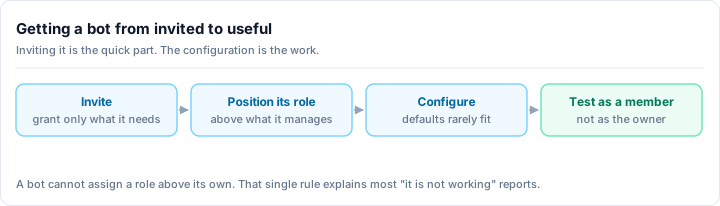
The screen lists every permission the bot is requesting. Uncheck anything it does not need. If a bot only posts messages, it has no reason to ask for Manage Roles or Administrator. You can always grant more later.
Verify and authorize
Complete the human-verification check, then click Authorize. The bot appears in your member list within about 30 seconds. If it stays offline, check its status page or re-invite.
For a deeper walkthrough of the invite flow and the authorization screen, see how to add bots to Discord.
Part 2: Permission management
This is where most server problems start. A bot can only do what its permissions allow, and over-granting is how a single compromised or buggy bot wrecks a server.
How Discord permissions stack
Permissions resolve in layers:
- Role level - the bot's role grants a baseline set of permissions.
- Channel overrides - a channel can add or remove permissions for that role.
- Role hierarchy - a bot can only manage roles and members below its highest role.
That last point trips people up constantly. A moderation bot cannot timeout or assign roles to anyone whose top role sits above the bot's role. Drag the bot's role high enough in Server Settings then Roles that it sits above the members and roles it needs to manage, but below your own staff where it makes sense.
The permissions most bots actually need
| Permission | What it does | Needed for |
|---|---|---|
| Send Messages | Post in channels | All bots |
| Embed Links | Use rich embeds | Most bots |
| Attach Files | Upload files | Music, image, log bots |
| Read Message History | See past messages | Logging, moderation |
| Manage Messages | Delete messages | Moderation, automod |
| Manage Roles | Assign roles | Leveling, reaction roles, welcome |
| Moderate Members | Timeout members | Moderation |
The rule: grant only what the bot needs. Never hand out Administrator as a shortcut. It is the single most common cause of a small bot problem becoming a server-wide one.
One bot, one set of permissions to reason about
Every bot you add is another role in your hierarchy and another permission set to keep straight. An all-in-one bot like Rally Bot needs a single, well-scoped role to cover moderation, roles, leveling, and the rest - instead of five separate bot roles all jockeying for position and overlapping permissions.
Audit permissions periodically
Every so often, open Server Settings then Roles, click each bot's role, and turn off anything it is no longer using. Permissions tend to creep upward over time as you experiment.
Part 3: Channel and role setup
A little structure up front keeps bots from cluttering your main channels.
Create a #bot-commands channel
Keep command spam out of conversation channels:
Create the channel
Make a text channel called #bot-commands.
Lock down @everyone
Open the channel's permissions and disable Send Messages for @everyone in the channels where you do not want command spam, then point members to #bot-commands for bot interactions.
Allow your bots
Make sure each bot can post in #bot-commands so responses land in one place.
Set up a private #logs channel
For moderation and audit logging, create a #logs channel visible only to staff, and point your bot's logging there. This is also a good home for join/leave tracking and automod hits, so your team has one timeline of what happened.
Get the role hierarchy right
Place bot roles deliberately:
- Moderation and role-management bots go above the members they manage.
- Bots that only post messages can sit low - they do not need to be high in the list.
- Keep your owner and admin roles above your bots so a misbehaving bot cannot touch staff.
Part 4: Configuring your bot
Most modern bots are configured from a web dashboard rather than a wall of slash commands - it is easier to set up complex features and to see everything in one view.
A typical flow:
- Open the bot's dashboard and select your server.
- Enable the module you want (moderation, leveling, welcome, and so on).
- Choose the channels each feature should use.
- Customize the settings, then save and test.
Web-first configuration scales better
Bots configured entirely from a dashboard - including Rally Bot - let you set up automod rules, role panels, welcome messages, and ticket categories visually, then save once. You are not memorizing command syntax or digging through a help menu every time you tweak a setting.
Part 5: Avoiding bot bloat and conflicts
Here is the trap: each new bot feels free to add, but the costs are real. Every install multiplies permission conflicts, configuration overhead, and points of failure. Plenty of owners end up running eight or more bots, and most of those overlap, sit unconfigured, or quietly break.
How conflicts actually happen
- Duplicate commands - two bots both register
/banor/poll, and members never know which one answers. - Overlapping automod - competing filters trigger on the same message and fight each other.
- Permission tug-of-war - bots step on each other's role and channel permissions.
- Bots deleting each other's messages - one bot's cleanup eats another bot's output.
The fix is structural, not fiddly
You can paper over conflicts by assigning each bot its own channels and documenting who does what. But the cleaner answer is to not create the overlap in the first place. One all-in-one bot has no internal command collisions, one automod engine, and one role - so the entire class of bot-versus-bot conflict disappears.
The math on a stack
A well-configured setup with one all-in-one bot covers moderation, engagement, roles, and utilities with a single role and a single dashboard. The same coverage across separate moderation, leveling, roles, tickets, and music bots means five roles to position, five dashboards to learn, and five things that can break independently - several of which charge for the useful parts.
If you are replacing a paid bot, the migration guides spell out exactly what carries over: the MEE6 alternative guide, the Dyno alternative guide, and the Carl-bot alternative guide.
Add Rally Bot to your server - one install, one dashboard, no premium tier.
Part 6: Testing and troubleshooting
Test before your main server
- Spin up a spare server with the same role and channel structure.
- Add and configure your bots there first.
- Exercise moderation, roles, logging, and any feature you depend on.
- Fix issues, then replicate the working setup on your main server.
Common issues
"The bot does not respond."
- Confirm it is online (green dot in the member list).
- Use the right command syntax - most bots use slash commands now.
- Check the bot's permissions in that specific channel.
- Make sure the feature is enabled in the dashboard.
"The bot says it lacks permission."
- Check its role under Server Settings then Roles.
- For moderation and role actions, confirm the bot's role sits above the target's roles.
- Check for a channel-level override blocking it.
"Two bots are fighting."
- Identify the overlapping action (duplicate command, competing automod).
- Disable the conflicting feature in one of them, or split them across channels.
- Better yet, consolidate onto one bot so the overlap cannot exist.
Part 7: Ongoing maintenance
A bot setup is not "set and forget." A light monthly pass keeps it healthy:
- Confirm each bot still responds.
- Review and trim permissions.
- Skim your logs channel for anything odd.
- Remove bots that are offline for days, unused, or replaced by something better.
Fewer bots makes every one of these checks faster - another quiet argument for keeping the stack small.
The bottom line
Good bot setup is not about how many bots you can cram in. It is about choosing the right foundation, scoping permissions tightly, structuring your channels and roles, and testing before you go live. Start minimal, configure carefully, and scale only when you hit a real gap.
For most servers in 2026, that foundation is a single all-in-one bot. Rally Bot is that bot: free, no premium tier, managed from one dashboard, and connected to a discovery platform that helps your server grow as it stays active.
Ready to set up your server the clean way? Add Rally Bot to your server - free forever, no subscriptions, no locked features. Then see what well-run communities look like across gaming, tech, and anime servers on Rally.