Discord AutoMod is the most underused tool in server management. It is free, built in, runs every second of every day, and blocks a lot of harmful content before a single member sees it. Every server in 2026 should have it on.
But it is also a first layer, not a finished moderation system. AutoMod matches patterns and counts; it does not understand context, escalate offenders, or keep the kind of log a real mod team needs. This guide does both halves: it shows you how to set up native AutoMod correctly first, then where it stops and how an all-in-one bot picks up the rest.
What Discord AutoMod actually does (and what it doesn't)
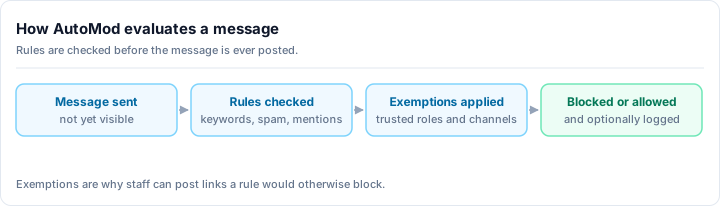
AutoMod intercepts messages before they post. When a message trips a rule, AutoMod can block it, send an alert to a channel for your team, and - for some rule types - time the user out. All of that happens in milliseconds. Native AutoMod matches text patterns, wordlists, and counts, but it does not read intent, sarcasm, or context. It will happily block "that boss is a killer" if "kill" is on your list. AutoMod gives you five rule types: spam detection, custom keywords with wildcard matching, commonly flagged words from Discord's preset lists, mention spam caps, and suspicious links from Discord's maintained list of harmful URLs. Each rule can block the message, send an alert to your team, or time out the user. This is a fast, literal filter - excellent at stopping obvious, repetitive content before anyone sees it, but it cannot escalate offenders, track repeat behavior, or understand context the way a human moderator can.
Native AutoMod gives you these rule types:
- Spam Messages - Discord's built-in detection for spammy, repetitive content.
- Custom Keywords - your own block list, with wildcard matching (an asterisk catches variations like
scam*). - Commonly Flagged Words - Discord's preset wordlists for profanity, sexual content, and slurs.
- Mention Spam - a hard cap on how many mentions one message can contain, plus mention-raid protection.
- Suspicious Links - blocks links from Discord's maintained list of harmful and malicious URLs.
AutoMod is not an AI moderator
Native AutoMod matches text patterns, wordlists, and counts - it does not read intent, sarcasm, or context, and it is not a configurable AI classifier. It will happily block "that boss is a killer" if "kill" is on your list. Treat it as a fast, literal filter, and tune your rules accordingly.
Turn on Discord AutoMod
You need the Manage Server permission. Open Server Settings, then select AutoMod under the Moderation section.
Block spam content
Turn on the Spam Messages rule. Set the action to time out the user for 10 minutes - a gentle first response - and exempt your Staff role so moderators are not caught by it. This single rule stops most low-effort bot raids and copy-paste spammers.
Enable the commonly flagged wordlists
Create a Commonly Flagged Words rule and switch on the preset lists (profanity, sexual content, slurs) that fit your community. Set the action to block the message and send an alert to a staff channel so your team sees what was caught.
Add your own custom keywords
Create a Block Custom Keywords rule for terms specific to your server - known scam phrases, fake-gift domains, recurring harassment terms. Use the asterisk wildcard to catch variations (free-nitro*). Start with 10 to 15 terms, keep them specific, and exempt your staff discussion channel so mods can reference flagged terms.
Cap mention spam
Turn on the Mention Spam rule and set a limit - 5 mentions in a single message is a sensible default. Action: time out for 1 hour, Staff exempt. This shuts down the mass-ping harassment that targets individuals during a raid.
Block suspicious links and route alerts
Enable the Suspicious Links rule to filter Discord's known-harmful URLs. Then, for every rule above, point the Send alert to channel action at one dedicated channel like #mod-alerts. That gives your team a single timeline of every AutoMod hit.
That is a complete native AutoMod baseline, and you can stand it up in about ten minutes. Test each rule with a secondary account that does not hold an exempt role before you trust it.
Test before you trust
Make a private #automod-test channel, give a throwaway account a non-exempt role, and post messages that should trip each rule. Confirm the block and the alert fire as expected, then remove the test role. This catches over-broad keywords before they delete a legitimate conversation.
Where native AutoMod stops
AutoMod is excellent at the obvious, repetitive stuff. But run a server for any length of time and you hit its ceiling fast. Native AutoMod cannot:
- Run real regex. It does wildcard matching, not full pattern matching. Bypass attempts with spacing, lookalike characters, or creative spelling slip right through.
- Escalate. There is no warn then mute then ban ladder. Each hit is handled in isolation, with no memory of what the same user did yesterday.
- Track repeat offenders. No persistent history, no per-user warning count, no appeals trail.
- Enforce a moderator structure. No tiered mod roles with their own scoped permissions and rate limits.
- Keep a rich log. The alert action posts a flag to a channel, but it is not a full audit trail of every mod action, edit, delete, and join across your server.
- Gate new accounts or moderate voice. Newcomer screening and voice are outside AutoMod entirely.
These are not edge cases. They are the day-to-day reality of running a moderation team. To get them, you add a bot.
Going further with a bot
This is where a dedicated moderation bot earns its place, and Rally Bot adds everything native AutoMod leaves out - free, with nothing held back for a paid tier.
On top of Discord's native filters, Rally Bot gives you regex and word filters, spam, link, and mention-spam protection, a real escalation ladder (warnings to timeouts to kicks to bans), tiered moderator roles with their own scoped permissions, newcomer screening for raid defense, and full audit logging of every action in one place. It is all configured from a single web dashboard, alongside the rest of your server tools, with no premium tier and nothing gated.
Free, and built to stay free
Rally Bot has no paid tier. It earns through server discovery - installing it lists your community on Rally's discovery platform, which ranks servers by real activity - so there is no business reason to ever paywall automod, escalation, or logging the way subscription bots do.
Add Rally Bot to your server - free, no credit card, no locked moderation features.
For the full breakdown of how the leading moderation bots stack up, see the best Discord moderation bot guide.
A layered setup that actually works
The strongest moderation is not AutoMod or a bot or humans. It is all three, each doing what it is best at:
- Native AutoMod - the instant first net. Spam, wordlists, mention caps, and known-harmful links, blocked before anyone sees them.
- Rally Bot - the layer AutoMod cannot reach. Regex filters, escalation ladders, repeat-offender history, tiered mod roles, newcomer screening, and a complete audit log, all in one dashboard.
- Human moderators - the judgment. Context, intent, appeals, and the culture calls no automated system should make.
AutoMod handles the volume. The bot handles the structure and the memory. Your team handles the nuance.
Common AutoMod mistakes (and the fixes)
- Over-broad keywords. Blocking "kill" in a gaming server flags "kill that boss." Fix: keep terms server-specific, use wildcards deliberately, and test in a private channel first.
- No staff exemptions. AutoMod stops your own mods from discussing the very terms they moderate. Fix: exempt your Staff role and staff-only channels from keyword rules.
- Relying on AutoMod alone. It blocks patterns but cannot escalate or remember. Fix: layer a bot on top for history and an escalation ladder.
- Silent deletes. Blocking with no feedback confuses members. Fix: start with an alert to a channel so your team knows what happened, and let your bot send the user a clear warning.
- Set and forget. Spam and scam patterns change weekly. Fix: review your alert channel every week and adjust.
Quick-start checklist
- Spam Messages rule - timeout 10 minutes, Staff exempt.
- Commonly Flagged Words - enable the preset lists you need, block plus alert.
- Custom Keywords - 10 to 15 server-specific terms with wildcards, block plus alert.
- Mention Spam - cap at 5, timeout 1 hour.
- Suspicious Links - on, all alerts routed to one #mod-alerts channel.
- Add a bot for regex, escalation, offender history, tiered roles, and full logging.
That is a layered, production-grade moderation stack - the free native baseline, plus the depth a real team needs.
The bottom line
Native AutoMod is the right place to start, and you should turn it on today. But it is a filter, not a moderation system. When you need regex, escalation, repeat-offender history, tiered roles, and one clean audit log, you reach for a bot - and an all-in-one bot means you are not stacking three of them.
Ready to go beyond the basics? Add Rally Bot to your server - free forever, one dashboard, no premium tier. It is the same complete, free, all-in-one bot covered in the best Discord bots in 2026 guide. Then browse active gaming communities and community servers on Rally to see well-moderated servers in action.